Flan SmartScale Troubleshooting
For live Support : Please call 1-800-723-9180 or email ScaleSupport@doordash.com
Scale Disconnect

Wiggle cables and ensure all cords are properly connected
Restart tablet (power + volume up)

Leave device charging for 24 hours and turn on device
If Issue Persists → email scalesupport@doordash.com or call 1-800-723-9180
Wall Outlet Disconnect
Wiggle cables and ensure all cords are properly connected
Try a different outlet and if resolved, green light should be on
Follow Steps Below, if Not

Restart tablet (power + volume up)
Test power cord on a phone & confirm if cord is working

If Issue Persists → email scalesupport@doordash.com or call 1-800-723-9180
Tablet Not Charging
Wiggle cables and ensure all cords are properly connected
Press power button (look for battery %)

If no charge:
Ensure all cords are secured and leave charging for 24 hours
Turn device next day
If Issue Persists → email scalesupport@doordash.com or call 1-800-723-9180
Inaccurate Weights
Make sure nothing is touching or underneath the scale
Scale should be flat and clear of obstructions
Give Scale a good distance away from any walls or cash registers

Calibrate scale

Test with item (300–500g):
Within 15g for every corner = working

Over/Under 15g for any corner = Escalate to Scale Support
If Issue Persists → email scalesupport@doordash.com or call 1-800-723-9180
Orders Not Populating

Ensure cords are properly connected
Unplug and reconnect all cords
Confirm correct store login



Access Secret Menu (Tap Logo 5x)
Run speed test : Must be 3 Mbps+

Checking If Sim is Activated
If displayed “No Sim”, Please check Sim Cartridge and Repeat the Step Above
Check receipts show only DoorDash orders, as we ONLY support Drive or Marketplace / Doordash

If POS has orders but scale does not → contact DoorDash Support
If Issue Persists → email scalesupport@doordash.com or call 1-800-723-9180
Damaged
1. If the tablet is detached and broken from the stand or has any visible damage, please contact Support to request a replacement.
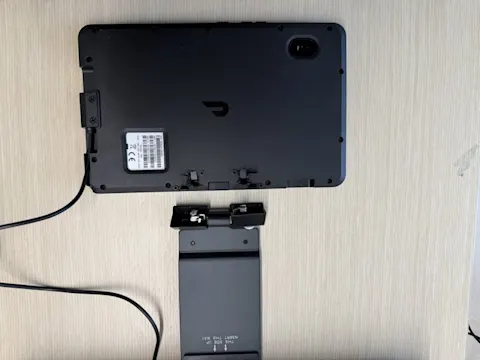
2. If Issue Persists → email scalesupport@doordash.com or call 1-800-723-9180



