DoorDash Crimson How to Set Up Direct Deposit
How to Set Up Direct Deposit
DoorDash Crimson Account
Contact DoorDash Crimson Support by phone at 1-(833)296‑9399.
What is Direct Deposit?
Direct deposit lets you route paychecks and income from outside sources, such as government benefits like Social Security, a full-time job, part-time work, or any other employer — directly into your DoorDash Crimson account. This is separate from your dasher earnings.
Once set up, your outside paychecks land straight in your Crimson account so you can spend, withdraw, or save right away all in one place.
Benefits include:
Get paid up to 2 days early(1) — receive your paycheck before your official pay date
All your income in one place — manage dasher earnings and outside pay from a single account
Use your paycheck as soon as it lands in your account with your DoorDash Crimson Visa® Debit Card
Earn 2% cash back(2) on gas when you pay at the pump with your DoorDash Crimson Card and earn 2% on other select purchases
Set money aside with each payout to build up your Savings Jar(3)
There are two ways to set up direct deposit on your DoorDash Crimson account. Choose the method that works best for you:
Automatic Setup (Recommended): Search for your employer and log in to automatically update your direct deposit settings.
Manual Setup: Provide your Crimson routing and account numbers to your employer, or generate a pre-filled form for HR/payroll.
How to Set Up Direct Deposit
Step 1: Open the DoorDash Dasher App
Launch the DoorDash Dasher app on your phone. Make sure you are logged into your account.
Step 2: Open the Menu and Select “Earnings”
Tap the menu icon (three horizontal lines) in the top corner of the screen to open the side navigation panel then select Earnings to access your banking and payment options.

Step 3: Navigate to Your DoorDash Crimson Account and Tap “Direct Deposit”
Inside Earnings, you will see your DoorDash Crimson Card section showing your available balance. This is your banking hub within the app.
Scroll down on the Crimson Card screen until you see the Account section. Tap Direct deposit — it reads: "Get all your paychecks deposited in one place."

Tip: This is the key step! The Direct Deposit option is located near the bottom of the Crimson screen under the 'Account' heading.
Once you tap Direct Deposit, you will land on a screen with two ways to connect your outside paycheck to your Crimson account. Both methods get you to the same place — choose whichever feels easiest based on how your employer handles payroll:
Setup Method 1: Automatic Set Up (Recommended for Employer Payroll)
The Automatic Setup connects directly to your employer or payroll provider so DoorDash Crimson can update your direct deposit settings on your behalf. No paperwork needed.
Note: If you receive government benefits (e.g. unemployment, Social Security), use Manual Setup instead.
Step 1: Tap "Find your employer"
On the Direct Deposit screen, tap the red Find your employer button in the Automatic setup section.
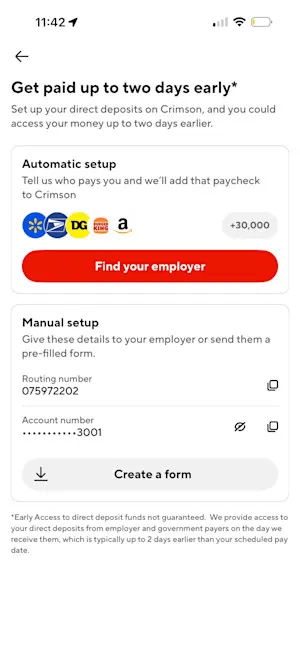
Direct Deposit screen — tap "Find your employer" in the Automatic setup section
Step 2: Review the Pinwheel Security Screen
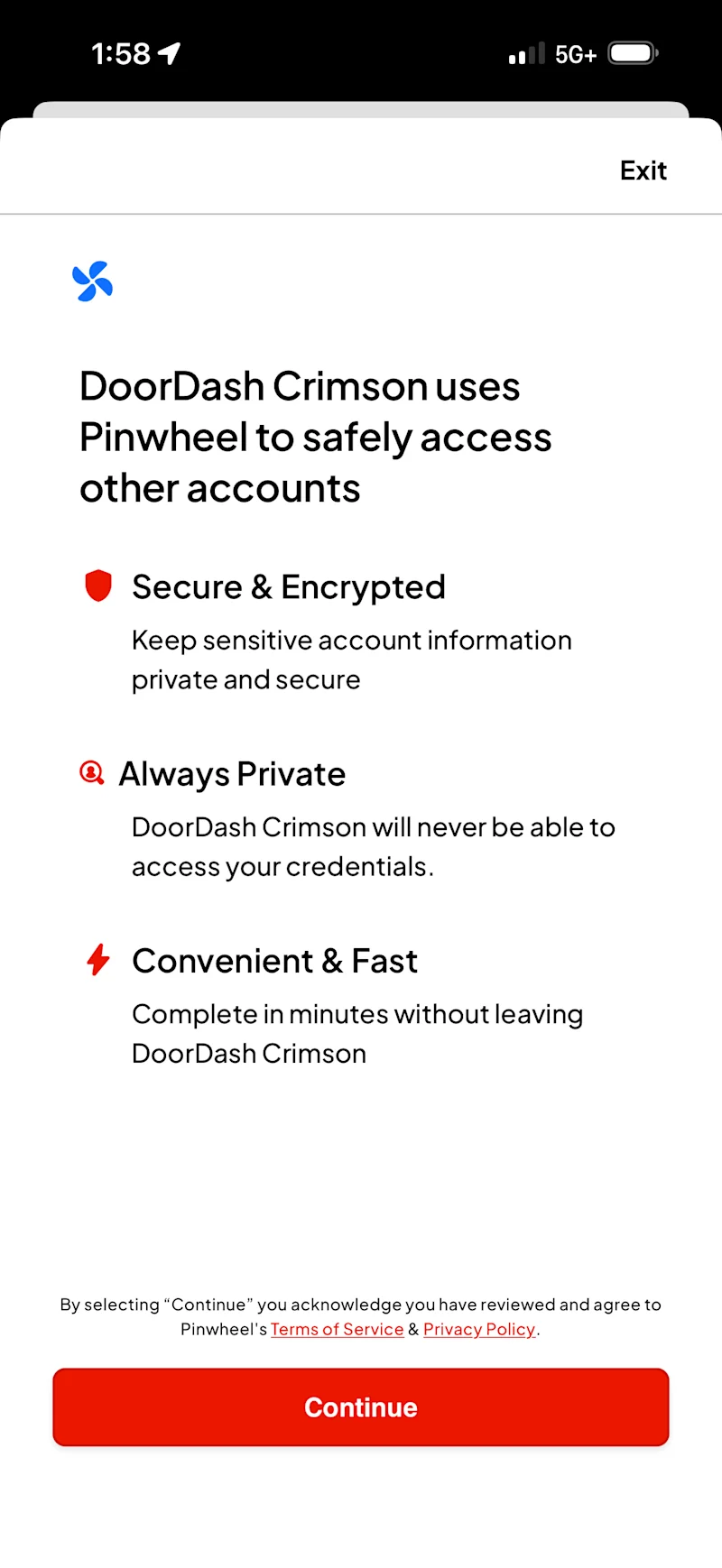
DoorDash Crimson uses Pinwheel to securely connect to your employer's payroll system. Review the security information and tap Continue to proceed.
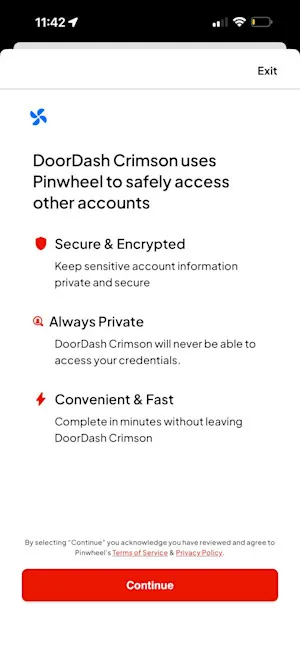
Pinwheel security screen — review and tap Continue
Step 3: Search for Your Employer or Payroll Provider
Search for your employer by name, or browse by category: Popular, Employer, Payroll, or Gig. Over 30,000 employers and payroll providers are supported, including ADP, Workday, Paychex, Paycom, and more. Tap your employer or payroll provider from the results.
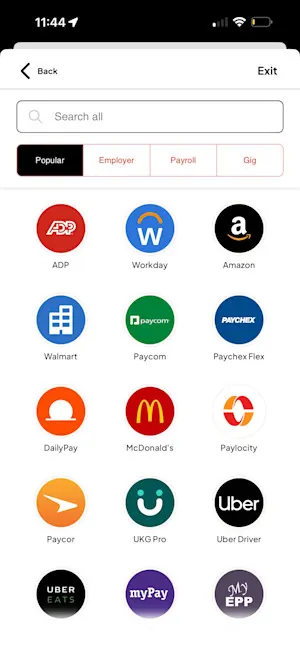
Employer search — browse Popular, Employer, Payroll, or Gig categories, or search by name
Step 4: Log In and Complete the Flow
You will be prompted to log in to your employer's or payroll provider's account. Once you log in, DoorDash Crimson will automatically handle the rest. You will be rerouted back to the app when the setup is complete.
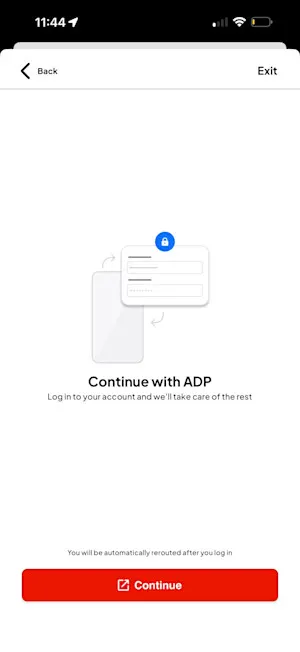
"Continue with ADP" — log in to your employer account and you'll be automatically rerouted when done
Setup Method 2: Manual Setup
Use Manual Setup if your employer is not available in the Automatic Setup search, or if you prefer to provide your account details directly. You can give your account details to your employer or generate a pre-filled form for HR/payroll.
Step 1: Access the Direct Deposit Page
Open the Dasher app and go to Earnings > DoorDash Crimson. Scroll down to the Account section and tap Direct Deposit.

Crimson Hub — tap "Direct Deposit" under Account
Step 2: Find Your Account Details
Scroll down to the Manual setup section. You will see your Crimson Routing Number and masked Account Number. There are two ways to proceed:
Give these details directly to your employer or payroll provider.
Tap Create a form to generate a pre-filled direct deposit authorization form with your Crimson account and routing number and a voided check.
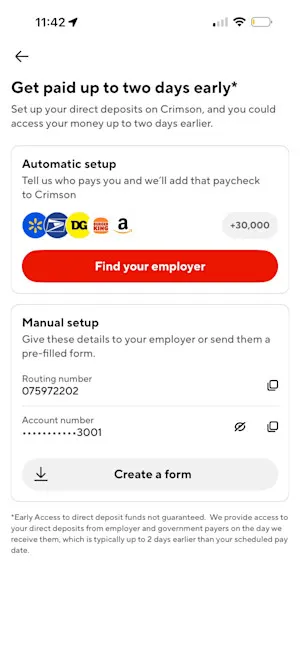
Direct Deposit screen — Manual Setup section with Routing Number, Account Number, and "Create a form" button
Option A: Give Your Account Details Directly to Your Employer
Use this option if your employer has an online payroll portal or prefers you enter your account details yourself.
Log in to your employer's or payroll provider's website or app.
Navigate to Pay or Direct Deposit settings. Contact your employer or payroll provider if you cannot find this page. Navigate back to the Dasher app.
From the Manual Setup section, tap the copy icon next to Routing Number to copy it.
(To get to the manual setup - Earnings > DoorDash Crimson > Direct Deposit )
Tap the eye icon to reveal your full Account Number, then tap the copy icon to copy it.
Enter the Crimson Routing Number (075972202) and your Account Number.
Choose how much of your paycheck to deposit — full paycheck or a partial amount.
Save or confirm your changes. You're done!
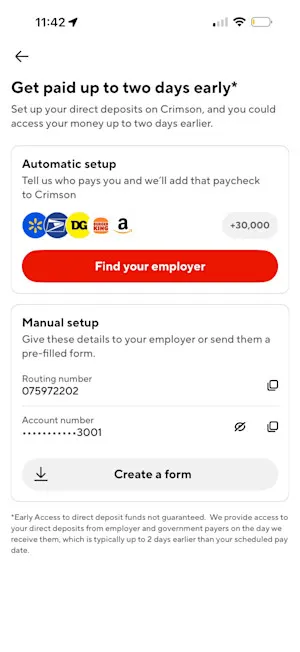
Manual Setup — Routing Number and Account Number ready to copy
Option B: Create a Pre-Filled Form
Use this option if your employer's HR or payroll department prefers a completed direct deposit authorization form. The app will generate a pre-filled form you can download and share.
Step 1: Tap "Create a form"
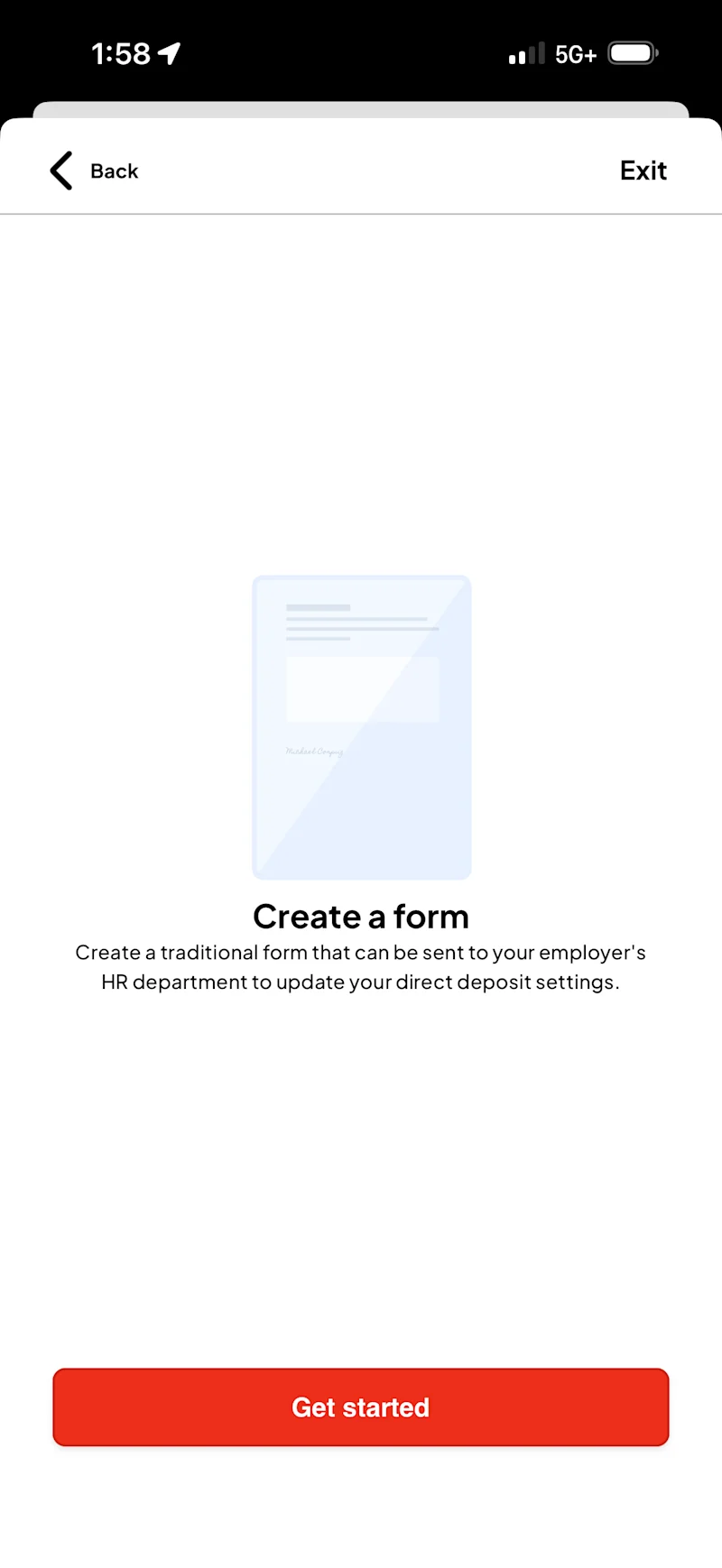
From the Manual Setup section, tap Create a form. You can download a form with your Crimson account and routing number, and a voided check.
Pinwheel consent screen — tap Continue to proceed |
"Create a form" screen — tap Get started |
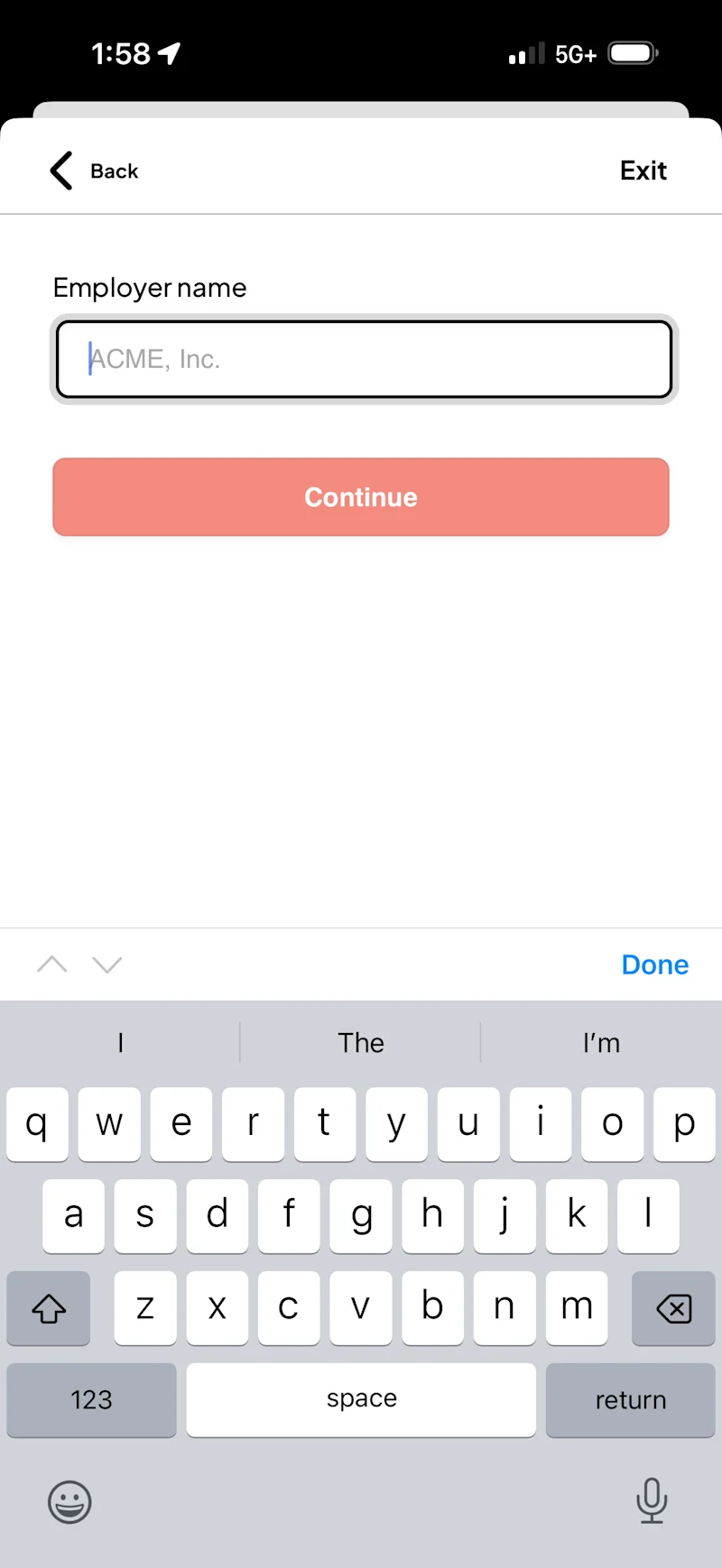
Step 2: Enter Your Employer Name
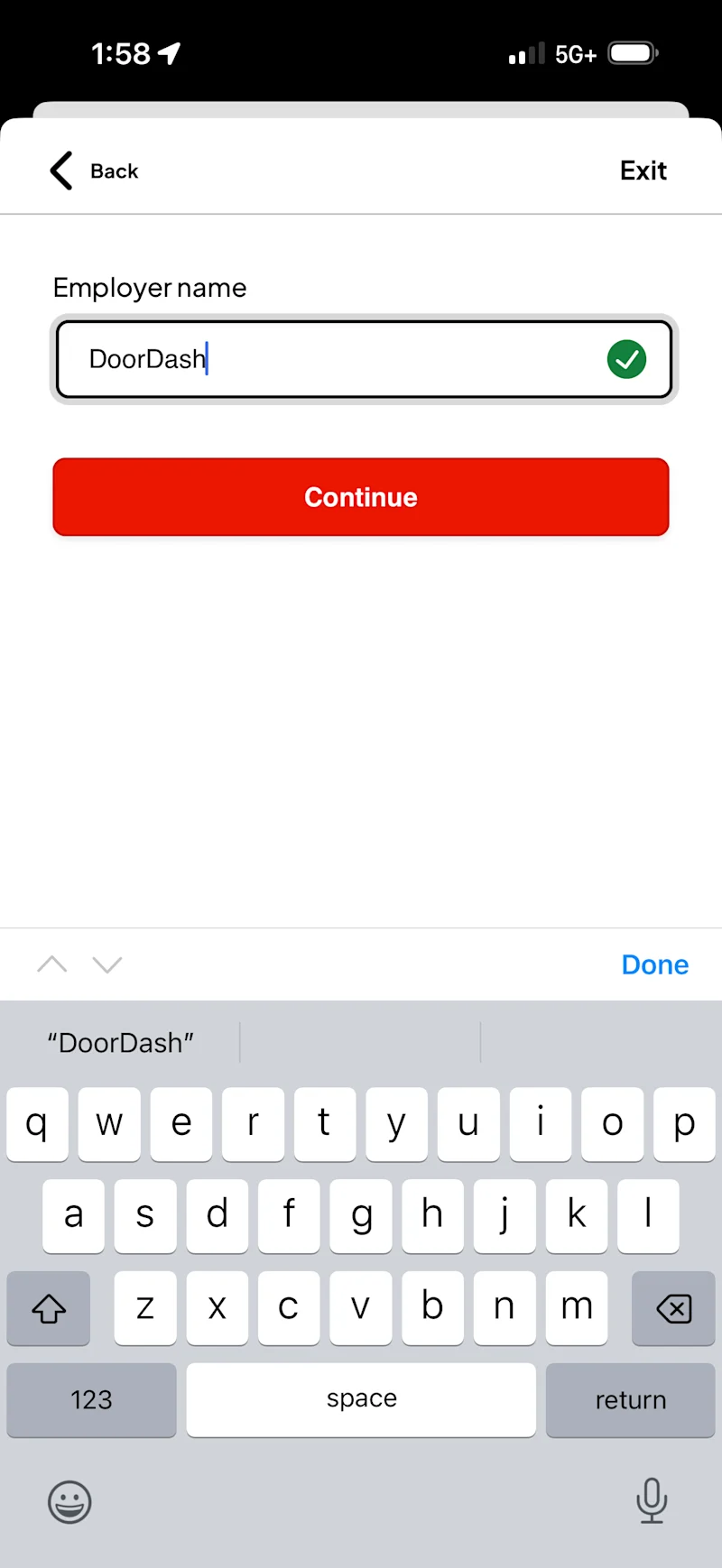
Type in your employer's name. Once the name is recognized, a green checkmark will appear. Tap Continue.
Employer name field — enter your employer's name |
Green checkmark confirms the employer name is valid — tap Continue |
Step 3: Select Your Deposit Amount
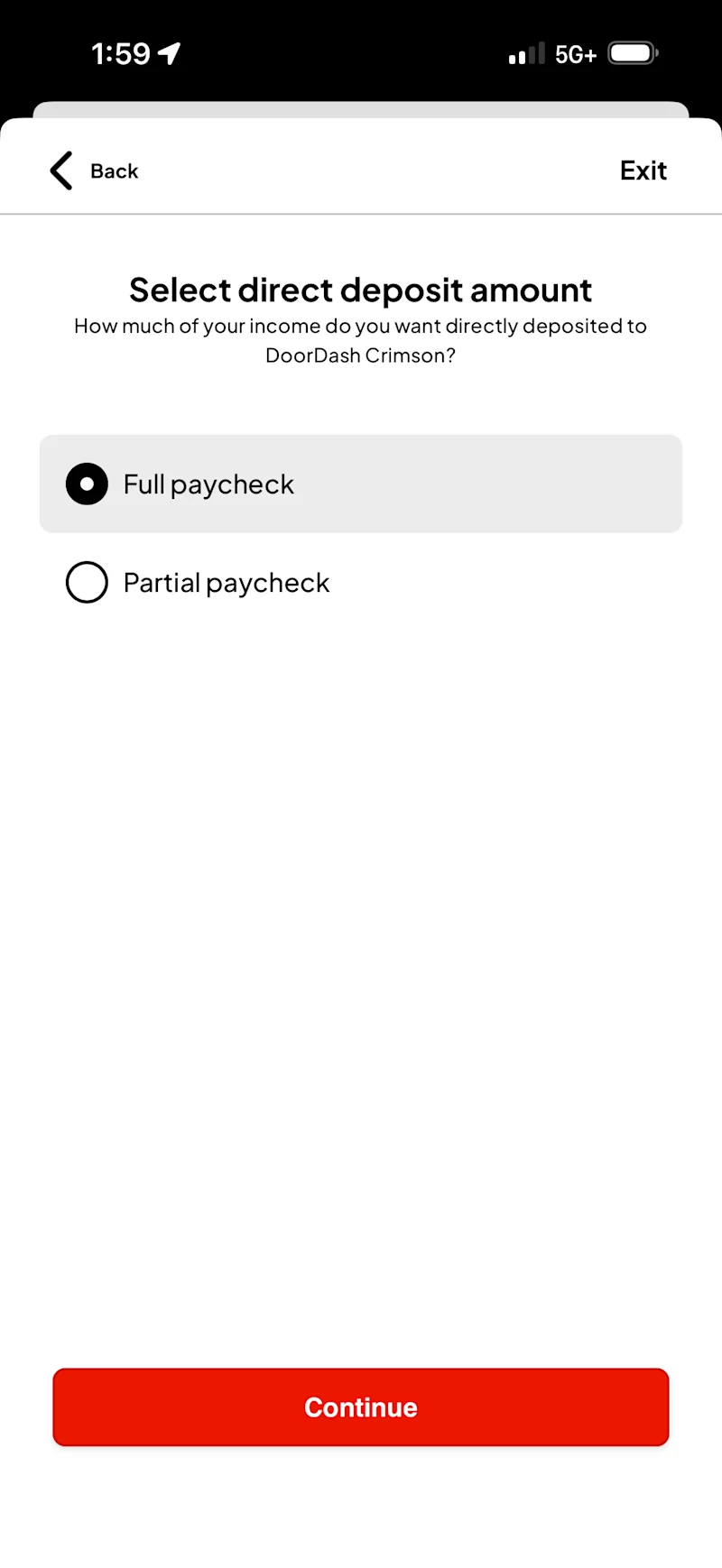
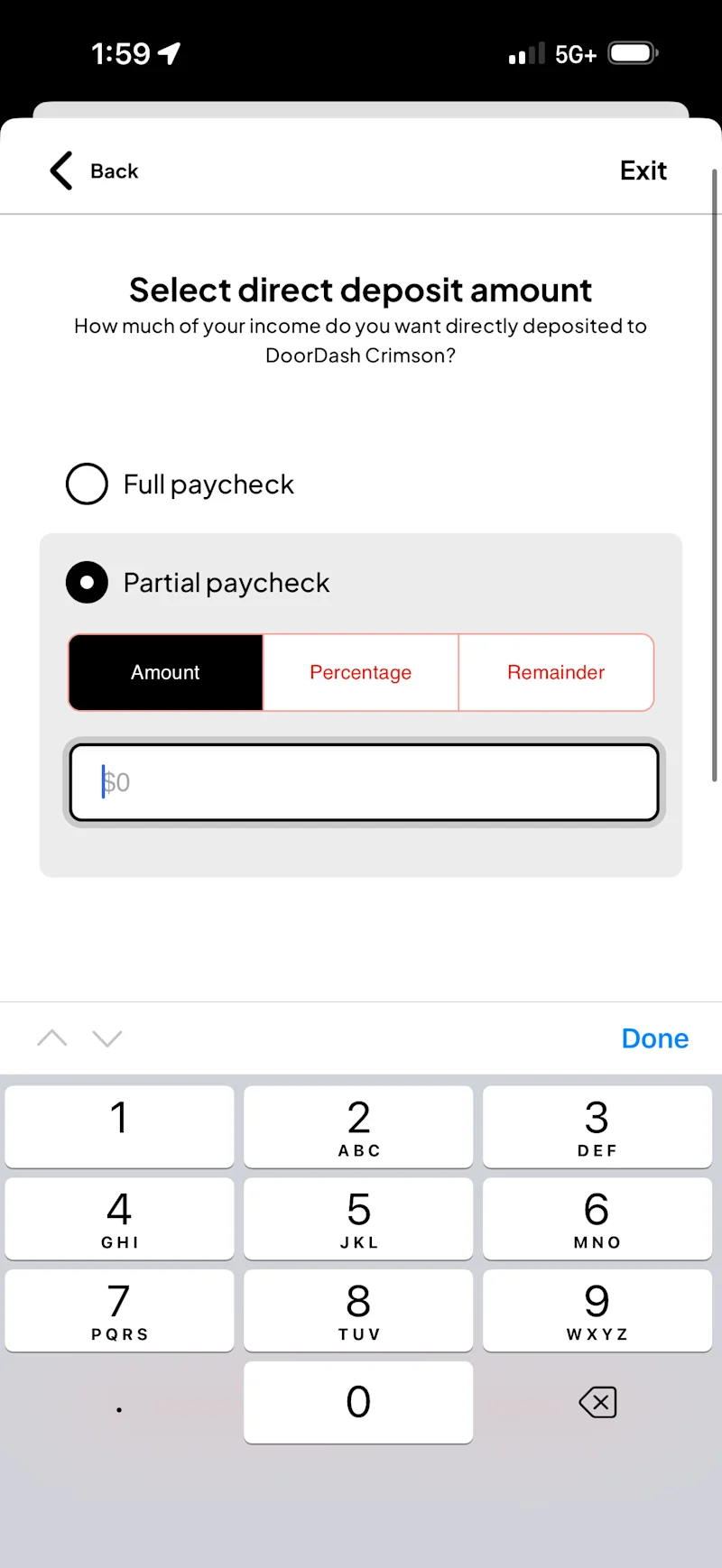
Choose how much of your paycheck you want deposited to DoorDash Crimson. Select Full paycheck or Partial paycheck. If you select Partial paycheck, enter a specific dollar amount, percentage, or remainder.
Select "Full paycheck" or "Partial paycheck |
For partial: enter an Amount, Percentage, or Remainder |
Step 4: Download and Share the Form
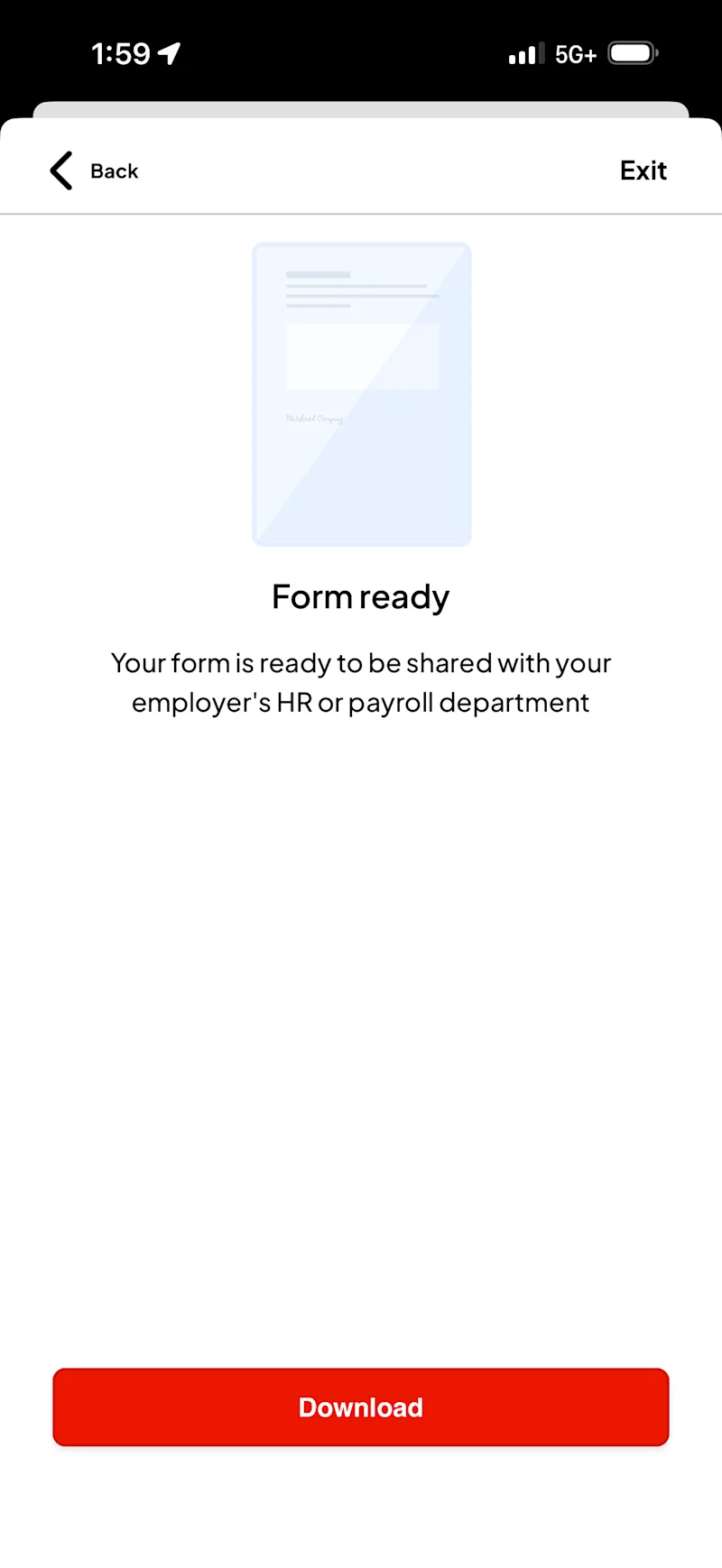
Once complete, you will see a "Form ready" confirmation screen. Tap Download to save the pre-filled form to your device, then share it with your employer's HR or payroll department to update your direct deposit settings.
"Form ready" — tap Download and share with your employer's HR or payroll department |
You're All Set!
After setup, paychecks from your outside employer will appear in your Available Balance on the DoorDash Crimson screen and often up to 2 days before your official pay date.
Once your deposit hits, you can:
Withdraw cash at an ATM — use Find ATMs in the Crimson Hub to locate nearby ATMs
Spend directly using your physical or virtual Crimson Card
Set aside money using the Savings Jar feature
1 Early Access to direct deposit funds is not guaranteed. DoorDash Crimson provides access to your direct deposits from employer and government payers on the day they are received, which is typically up to 2 days earlier than your scheduled pay date.
2 Eligible users with an active DoorDash Crimson account in good standing earn 2% cash back on qualifying gas purchases made with the DoorDash Crimson Card. Cash back on gas limited to $600 in total spend per month, at the pump only. Rewards eligible to redeem in the Crimson Hub. Subject to eligibility requirements and limitations. Cash back rewards are typically eligible to redeem after the transaction settles, processing times may vary. Rewards may be reversed for refunded or disputed transactions. DoorDash may modify or terminate the promotion at any time.
3 Savings Jar is a sub-account of your DoorDash Crimson Deposit Account; it is not a savings account. You will not receive interest on funds in your Savings Jar. Consult your Deposit Account Agreement for additional details.
The DoorDash Crimson Deposit Account is established by Starion Bank, Member FDIC. The DoorDash Crimson Visa Debit Card is issued by Starion Bank pursuant to a license from Visa U.S.A. Inc. Certain fees, terms, and conditions are associated with the approval, maintenance, and use of the Deposit Account and Card. If you have any questions regarding your Deposit Account or Card, you should consult your Deposit Account Agreement and Fee Schedule found in the Crimson Hub of the Dasher mobile app, on the DoorDash Crimson website at doordashcrimson.com, or contact us toll-free at 1-855-973-1040. Starion Bank does not endorse or sponsor and is not affiliated with third-party products or services offered or advertised by DoorDash.DoorDash Crimson Deposit Account AgreementDoorDash Crimson Deposit Account Fee ScheduleDoorDash Crimson Starion Bank Privacy NoticeDoorDash Crimson Electronic Communications AgreementDoorDash Crimson Rewards Terms & Conditions



