No-Contact Delivery Requests
No-Contact Delivery Requests
Overview
DoorDash takes the health and safety of all members of our community very seriously. Customers and Dashers have the ability to request no-contact deliveries in order to ensure the safety of the community.
Please note: In order to help ensure smooth and safe pickups, Merchants are also updating pickup protocols. They will provide any new pickup instructions in the Dasher App.
Frequently Asked Questions
Q: What is a “no-contact” delivery?
A: A “no-contact” delivery is a delivery where you do not directly hand the food to the customer. Instead, you place the food in a safe, agreed upon location and communicate that to the customer via your device (see the how-to section below).
Q: How do I know if a customer requested a “no-contact” delivery?
A: You will either see this request as a text message or in your delivery instructions. You may see customers ask for “no-contact", “contactless,” or “leave at my door” deliveries.
Q: How do I complete a “no-contact” delivery?
A: You can complete a "no-contact" delivery by following the instructions below:
Agree on a safe, secure, and clean location to place the food.
If the app asks you to submit a photo, then you can do so directly in the app (screenshots below). Otherwise text the photo to your customer.
Wait at a comfortable distance for the customer to get their food.
Mark the order as delivered, and continue delivering as usual!
In-app steps to complete a “no-contact” delivery
If it is a "no-contact" delivery, then upon arriving at the customer address, the bottom of the screen will say “complete delivery steps”. If you are unable to find the customer address, you can call or text them.

Follow the steps to take a photo (required) and leave a description (optional)*. The photo is intended to help the customer find the food. See requirements below on how to take a satisfactory photo.

You may either use the camera feature in the app, or upload a photo from your library. The ‘Photo Library' option is especially helpful if you are in an area with poor cell signal, in which case you can go to a better area and upload from your library later.

After submitting a photo and description, click “complete delivery”. If the customer takes the food before you have a chance to take a photo, then click “Handed order directly to customer”**.

*Some special deliveries may require additional steps. Simply follow the steps on the screen.
**This option is only intended for when the delivery was supposed to be no-contact, but the customer took the food from you before you were able to take a photo.
When you have completed the last step, the photo you took and submitted will automatically be texted and emailed to the customer to help them find their order. You will not see the text on your phone unless the customer replies to it; they can do so for up to 30 minutes after the delivery.
Providing clear photos upon delivery is critical, and here is a checklist of what to include in your post-delivery photos to help your customers easily locate their food:
House/Apt Door
House/Apt Number (if available)
Food Package
Clear food drop-off location
Helpful Photo | Not-So-Helpful Photo |
House/Apt Door House/Apt Number (if available) Food Package is clearly visible Food drop-off location is clear
| NO House/Apt Door NO House/Apt Number Blurry Image Food drop-off location is NOT clear
|
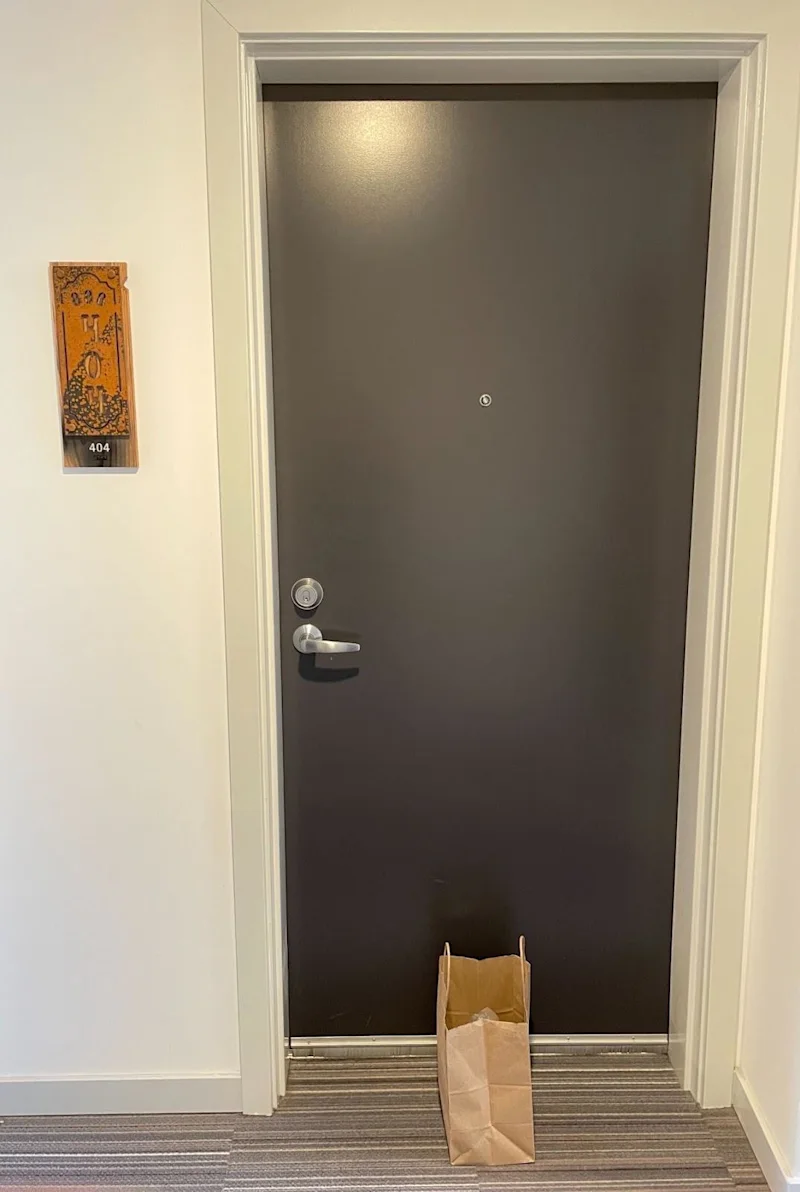
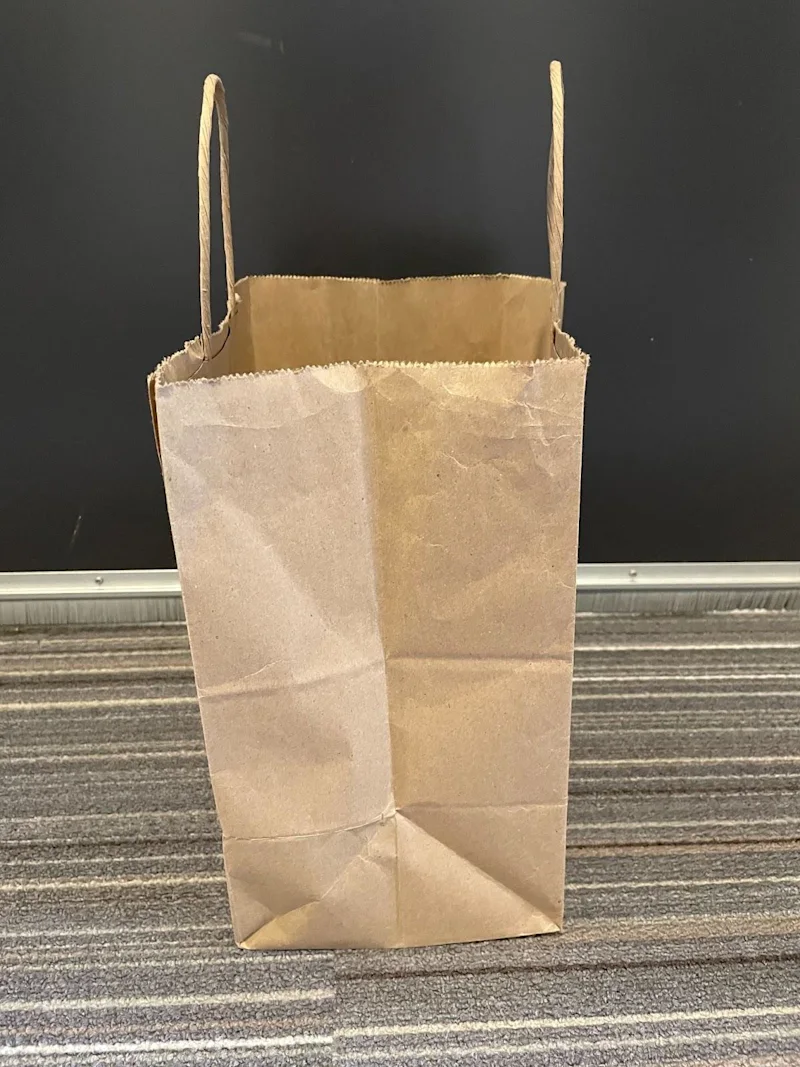
Remember: Not submitting photos for no-contact deliveries may lead to deactivation. If you are having difficulties taking a good photo click HELP or ? from your Dasher app and follow the prompts to report an issue.
Q: What if I end up handing the food to the customer directly?
A: We know that sometimes the customer might take the food before you’re able to take a photo. In cases like these, you can select the “handed order directly to customer” button in the app. If you don’t see this option in your app, then you may mark the delivery as complete and proceed to your next delivery.
Dashers, merchants and customers may still need to wear a mask if required by local public health, restaurant or building guidelines.
Q: What if I can’t find the customer’s address?
A: If you cannot find the customer’s address, you can text or call them by clicking the “x” to close out of the photo step. You can also reach out to DoorDash Support if you’re having trouble getting in touch with the customer.
Q: What should I upload a photo of?
A: Customer and support agents will use these photos to locate where the food was left on contactless deliveries.
Photos:
Capture both the food and the location you left it in (house number/door)
Are clear and have adequate lighting (can use flash if it’s night time)
Photos of just the food, your red bag, a receipt, or just the building do not satisfy the photo requirement for contactless delivery.
Q: How do I request to provide a “no-contact” delivery?
A: You can text or call the customer via your Dasher app. For example: “Hi, it’s your Dasher. I’m healthy, but I’d like to request a “No-Contact Delivery” given everything going on. Is there a safe spot to place your food? I can wait nearby until you come pick it up. Thanks!”
Q: Will merchants also be doing “no-contact” pickups?
A: Yes, some merchants have begun updating pickup protocols. In order to help ensure smooth and safe pickups, merchants will provide any new pick up instructions in the Dasher App.
As part of keeping deliveries "no-contact", do not open sealed bags. If you receive a sealed bag, both customers and restaurants require that you do not open the package - even to check the contents. If you want to verify the order, confirm the name and its contents with the restaurant staff.



