Expensed Meals Budget Guide
In this article
Creating and Managing Budgets
Expense Codes
Order Restrictions
How to Use Your Budget
Budget Notifications
Itemized Receipts
FAQ
Contact Us
With DoorDash for Business Expensed Meals, you have the flexibility to set food budgets for employees to order meals anytime, anywhere they work. Expensed Meal budgets can be customized with spending limits, set for one-time or recurring usage, and restricted to certain days, times or locations.
Creating and Managing Budgets
To Create an Expensed Meals Budget:
Select 'Expensed Meals' in the Admin Portal
Click 'Create Budget'
Enter budget name and spending limit
Select the 'One-time' or ‘Recurring’ budget type
If Recurring is chosen, select Daily, Weekly or Monthly as the frequency that the budget will be renewed
Ex: $20 Daily budget will give employees up to $20 per day
Add Start date and (Optional) End date
Under Order Restrictions
Apply budget to 'All members' or 'Specific groups'.
NOTE: Groups must be created in the Groups tab before this step. Learn more here.
Select the Days and Times that employees can order
Under Expense Codes:
Set budget expense code requirements as necessary
Click 'Save’

A budget will become active at the selected start date and time.
Any unused budget will expire after the timeframe concludes.
Employees can use the budget towards one or more orders until the budget is exhausted or the set timeframe concludes.
Address Restrictions
If you need to restrict your budget to specific delivery locations, you can now manage address restrictions on each budget!

1. Edit your existing budget or create a new one
2. Scroll down to the button that says ‘Any address’ and click ‘Specific address.
3. Here, you can input the address of your choice, label it, and hit ‘Save’
4. You can save up to 10 different addresses per budget, and can edit or delete each address as you need to.

To Edit or Delete an Existing Budget:
Select the 'Expensed Meals' tab in the Admin Portal
Click the menu icon (...) next to any active budget
Click 'Edit' to adjust an existing budget, or 'Delete' to remove it.

Please note that deleting a budget is permanent and employees will not be able to use this budget once confirmed. Active or previously scheduled orders will not be impacted.

---
Expense Codes
All Expensed Meals budgets (new and existing) have the option to require an expense code before an employee orders.
How to Upload/Manage Expense Codes
If your team is juggling multiple expense codes, admins can manage their expense code list by going into the Admin Portal, accessing the Expense Meal page, then clicking into the ‘Expense Codes’ tab:

To upload a new or updated list of expense codes, click ‘Upload new CSV’, then drag-and-drop your CSV file into the box, click ‘Upload’ and the page will refresh with the most up-to-date list provided.
CSVs should contain the needed codes, along with any needed corresponding descriptions. A CSV template can be downloaded by clicking ‘download our template’ at the bottom of the Upload window.

How to Enable/Disable Expense Codes
When editing or setting up an Expensed Meal Budget in the Admin Portal, the team admin can toggle on options for expense code requirements under the ‘Expense Codes’ section of the window, as shown below:


To require expense codes from your uploaded list in the previous step, simply select ‘Required from list’ at this step
Otherwise, with either the ‘Optional’ or ‘Required’ options selected, employees will be provided with a free-form field at checkout
How to Enter an Expense Code when Ordering
If an expense code has been enabled for a Meal Budget, the employee will be required to enter an expense code (along with optional or required note) when placing an order.
At the bottom of the checkout page, below payment options, the employee will be prompted to enter the expense code manually or select it from a dropdown as shown below:


Note for iOS: Dropdown at checkout is available for DoorDash App Version 7.25.0 which is only available on iOS 17 + higher.
---
Order Restrictions
Expensed Meal budgets cannot be used to buy alcohol or other age-restricted items. If an employee tries to check out with age-restricted items such as alcohol in their cart, an expensed meal budget will not apply towards the order and will instead be charged to the employee’s personal card on file.
Budgets are not automatically applied to Grocery & Convenience merchants. If you would like to turn this option on for your team, please reach out to business-support@doordash.com to request this.
Budgets created will be available to all employees in the Admin Portal, unless the budget is restricted to a specific group. Learn more about creating groups here.
---
How to Use Your Budget
To Select Your Budget at Checkout:
After selecting your items from your preferred vendor, proceed to checkout. If you have any applicable budgets for your order, you will see the option for 'Company Pays' on the bottom of your mobile device or desktop browser:


To change out the applied budget, click on the 'Company Payment' section and select the appropriate option from the list of available budgets.
Any ineligible budgets will be shown as well, for your reference.


Select Save, and that’s it! Your new budget will be applied to your order once you complete checkout.
---
Budget Notifications
Admins in the Portal can now customize notifications to employees when creating a new budget, or send reminders for existing ones.
New Budgets
When creating a new budget, you will see an option to send an email to all eligible employees at the time of budget creation. To send the notification email, hit Send. To not send the email, or the option to send at a later time, click Don’t Send.

Existing Budgets
If you would like to send a notification email regarding a budget after it has already been created:
Click on the 'Expensed Meals' tab on the left side of your Admin Portal.
Click the three dots on the right side of the budget you would like to send the notifications on.
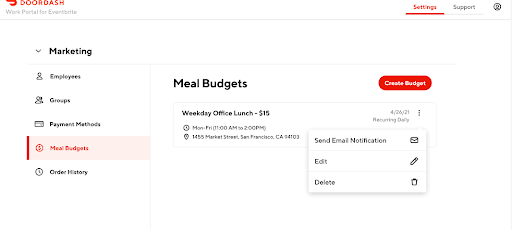
Select 'Send Email Notifications'.
A Confirmation box will appear. Click Send to send the email.

Budget Notification Emails
The email that eligible members will receive will contain the following information:
From: no-reply@doordash.com
Budget Name
Budget Amount
Budget Restrictions such as date and time available, as well as the expiration date of the budget.
---
Itemized Receipts
The Admin Portal offers the ability for admins to download itemized receipts in CSV or PDF format. Our new PDF format offers admins a clear, easy to read view of their team’s spending.
To download an itemized receipt, please follow the steps outlined on our Order History page.
---
FAQ
Q: How many budgets can I set up at a given time?
A: You are free to set up multiple Expensed Meals budgets at the same time. When an employee has been assigned to multiple groups, only the highest value budget will be applied at checkout. Employees cannot combine multiple budgets within a single order.
Q: How are Expensed Meals budgets applied to employees?
A: Once an employee is logged in with an email address that matches what has been entered in the Work Portal, budgets will be applied at checkout when ordering through DoorDash.
Q: How can a budget be restricted to a certain address?
A: Please reach out to business-support@doordash.com to restrict expensed meal budgets to orders to a certain address.
Q: Is there a limit to the number of codes I can upload?
A: No, there is no limit to the number of codes you can upload under the Expense Code tab!
Q: Can I require employees to enter an expense code, but make notes set as optional?
A: Yes, you can set both expense codes and notes as either required or optional.
Q: Can employees search for both expense codes and expense code descriptions?
A: Yes, both are searchable when selecting an expense code.
Q: Can I require expense codes if users are checking out with a Business Profile?
A: No, currently only meals with an assigned Expense Meal budget (as created in the Admin Portal) can be set to require expense codes at checkout.
Q: Will I be able to see expense codes in the Billing History?
A: Yes! You can see expense codes in your order / billing history.
---
Contact Us
For further assistance, please reach out to your DoorDash representative, or email us at business-support@doordash.com. For time-sensitive issues, call (855) 830-5429.
For help with a live order, click here to contact our live support.



