Getting started with Self-Serve Sponsored Listings
Note: Self-Serve Sponsored Listings are only available in the US, Australia, and Canada at this time. |
What are Sponsored Listings?
Sponsored Listings are ads that are featured in highly visible places on the DoorDash app, like the homepage and search results. Unlike ads on other platforms, Sponsored Listings are pay-per-order, not per click. That means you only pay for the ad when an order is placed through it – you aren’t charged for clicks or impressions.

To learn more about how to set up your Sponsored Listing and track campaign performance, view the articles below.
Table of Contents:
1. How to set up a Sponsored Listing in the Merchant Portal
2. Tracking and Improving the performance of Sponsored Listing
What data will be available to track the success of my Sponsored Listings?
How does DoorDash estimate the performance of a Sponsored Listing?
1. How to set up a Sponsored Listing in the Merchant Portal
How do I create a Sponsored Listing?
Log in to DoorDash’s Merchant Portal and navigate to the “Marketing” tab, click “Run a Campaign” and select “Advertise to Customers.” Only merchants with store photos can create a Sponsored Listing. We provide recommendations as default options but you can customise each selection based on your needs. Follow these steps to set up your campaign:
Choose Audience: Target your ads to new, existing, or all customers.

Assign a Daily Budget: Select the amount you are comfortable spending on ads per day. You’ll be charged each time a customer places an order within 7 days of clicking your ad; you won’t be charged when a customer sees or clicks on your ad but doesn’t place an order. The actual amount you are charged each day will depend on your bid strategy

Select the Bidding Strategy: Your bid is how much you’re willing to pay per order placed. You can either let DoorDash optimise your bid automatically or opt to set a custom bid.

Pick campaign duration: Set a campaign end date or keep it going (recommended).

Select Stores: Select up to 4,000 stores at a time.

Review and run your campaign. After creating your Sponsored Listing, you can track performance on the “Campaign Reporting” page (within the Marketing tab) and edit or end the campaign anytime.
Where do Sponsored Listings appear in the DoorDash app?
Sponsored Listings may appear in relevant carousels on the homepage and on the search and cuisine results. Your ad will be shown to users that we believe may be a good match for your store. For example, if you are a pizzeria, your listing may appear to users who are interested in pizza.
If you are the winning bidder, your store ad will appear with an ‘Ads’ label next to your business name, along with other information like ratings. Learn more about Bidding and Quality Score.
At this time it isn’t possible to target your ad to specific placements on DoorDash, but remember that you are not charged for clicks or impressions. You only pay when a user clicks on your ad and places an order within seven days, regardless of how frequently your ad shows.
How do I set a budget that’s right for me?
To run a Sponsored Listing, you need to set an average daily budget. Your daily budget is an amount you’re comfortable spending, on average, for ad orders each day across all the stores selected in the campaign. You’ll only pay for orders placed within 7 days of clicking your ad. We provide budget recommendations based on your past sales performance and the estimated ad sales we expect from your campaign. If you want to set a custom budget, we recommend setting a daily budget of at least 1% of your last month’s total order value.
Why do I need to set a daily budget?
Setting a daily budget lets you set the maximum amount you’re willing to spend on an ad on a per-day basis. This means you’re in full control of your costs for each ad.
How does budgeting work?
We may automatically adjust your daily budget to match user demand. We will not exceed 2x of your average daily budget on any given day or more than 30.4x your average daily budget over the course of a month (30.4 is the average number of days in a month). If your campaign runs for less than a month, we won’t spend more than the average daily budget multiplied by the number of days your campaign is active. Your campaign will be paused when your daily budget exceeds the 2x threshold and will restart the following day.
How does bidding work?
Your bid is the maximum amount you are willing to pay per order for this campaign. Note: Orders placed within 7 days of a user clicking your ad are attributed to your ad.
Sponsored Listings ad placements are determined via an auction where advertisers are bidding for placement. Each time someone searches on DoorDash, we rank all eligible ads based on a combination of bids and quality scores. How you set up your ad will influence how you are ranked. The winner of the auction will be the one with the highest combined bid and quality score.
If you win the auction and a customer places an order within 7 days of clicking your ad, the minimum amount necessary to win the auction is typically one cent more than the second-place candidate.
How do I choose a bid method?
We suggest starting with automatic bidding if you are new to Sponsored Listings. DoorDash will automatically place the optimal bid based on your daily budget and adjust it overtime for you. It’s the easiest way to run a Sponsored Listing.
If you have experience with running ads before you may use a custom bid, it lets you decide the amount you want to bid per order placed.
Either way, we suggest checking back every day to see how your new campaign is performing!
How do I select a campaign goal for my campaign?
Certain businesses on the Merchant Portal may be able to select a business goal along with a daily budget. This option is designed to help us better optimise your ad, also known as or Sponsored Listing. Based on what you select, you’ll see how your goal and daily budget will affect your estimated sales and return on ad spend.
When will I be charged for running a Sponsored Listings?
Sponsored Listings are offered through a risk-free pricing model, which means that you pay only when the ad leads to an order, not per ad click or ad view. You’ll be charged each time a customer places an order within 7 days of clicking your ad. Ads charges will be deducted from your stores’ payouts at the same time you are paid for the ads attributed order.
For example, if a user places an order via your ad on Tuesday, the ad's charges will be deducted from that order when it’s paid out to you, either on Friday or the following week.
How can I edit or end my campaign?
Once your campaign is live you can monitor its performance by navigating to the ““Campaign Reporting” page, within the Marketing tab of the Merchant Portal. Only the original campaign creator can edit or end the campaign.
Edit: If your campaign is active, you can edit it any time by clicking ‘Edit’. It will take you to your Sponsored Listings setup page and then you can edit the campaign selections and run it again. Only the user who created the campaign will be able to edit the campaign.
End: To end the campaign, you can click the three dots on the right-hand side and, then click ‘End campaign’ to stop the Sponsored Listings campaign. When you end your campaign, your ad will immediately stop showing to users, but you will still be charged for any users who clicked on your ad when the campaign was live, provided they place an order within seven days of clicking.

Can I run a Sponsored Listing and a promotion at the same time? If so, how will I be charged?
Yes, you can run a Sponsored Listing along with promotions. Your Sponsored Listing will help you reach more customers on DoorDash, and your promotion will entice customers to order from you. You will be charged for a Sponsored Listing if the customer places an order after clicking your ad within 7 days and also for the promotion, which includes the customer incentive and marketing fees per redemption.
I noticed that my store appeared as an ad in a carousel on DoorDash’s home screen. What’s up?
To give you more visibility and to help you reach more customers, we’ve rolled out additional placements for Sponsored Listings. You might notice your ad appear in two new places throughout the app:
Home Screen Carousels | Additional Search Placements |
|
|
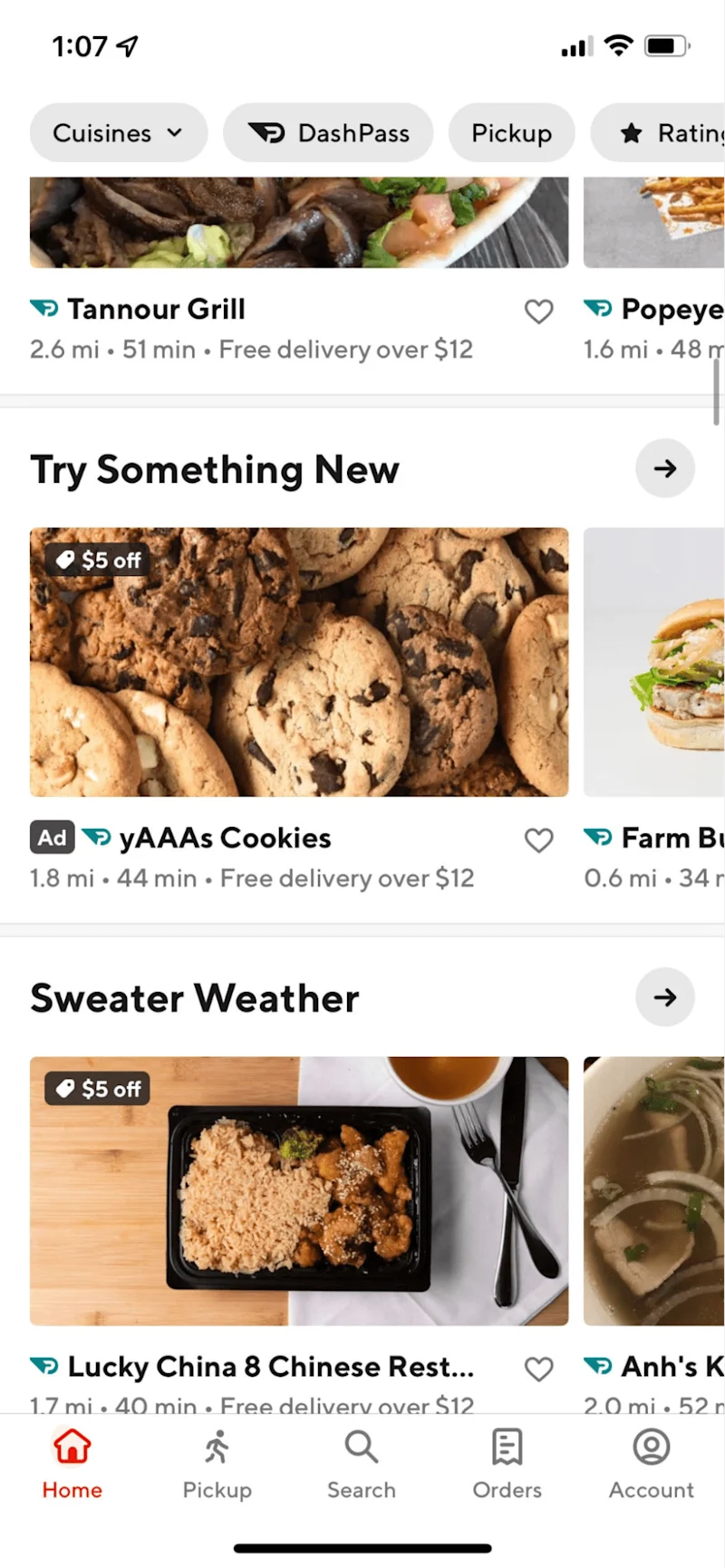
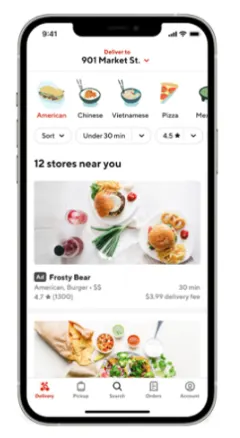
Sponsored Listings continue to work the same way they always have: your store competes against other eligible stores in an auction. The winner is the store with the highest combined bid & quality score. Learn more about Bidding.
At this time it isn’t possible to target your ad to specific placements on DoorDash, but remember that you are not charged for clicks or impressions. You only pay when a user clicks on your ad and places an order within seven days, regardless of how frequently your ad shows. The net effect of these changes is that your marketing campaigns will be in the best positions for customers to spot you.
2. Tracking and Improving the performance of Sponsored Listing
What data will be available to track the success of my Sponsored Listings?
Navigating to the “Campaign Reporting” page, within the Marketing tab of the Merchant Portal. Click the campaign you want to view performance of and get a detailed report on Sales, Cost, and Return on Ad Spend (ROAS).
What is Return on Ad Spend, and how is it calculated?
Return on Ad Spend (ROAS) is one of the most effective ways to evaluate your ad’s performance. It’s the ratio of gross sales generated by your campaign to ad fees spent on the campaign. In other words, the ROAS of your campaign is calculated by Total Sales / Total Cost.
When you create your Sponsored Listing, we’ll show you an estimated ROAS for your campaign. These estimates are calculated based on your last 28-day average order value and the performance of other businesses using DoorDash Sponsored Listings. Actual results may vary from the estimates based on customer demand, seasonality, bidding strategy, and a variety of other factors.
Why isn’t my Sponsored Listing ad showing up on the app?
Below are a few reasons why your Sponsored Listing ad might not always appear on DoorDash:
Your store didn't win the auction based on your bid amount and quality score. If your ad does not come first in this ranking, it will not be shown.
Your store organically appears in a very prominent position. We believe a store should only pay for orders they can’t get organically as it will not result in any incremental sales
What is a quality score & how can I improve it?
Quality score is a measure of how likely consumers are to purchase from your store.
The best way to improve your quality score is to continue doing what you do best: make great food! Quality score is a measure of how likely consumers are to purchase from your store. There are many factors that go into a restaurant’s quality score, but historical guest happiness plays a big role. We also encourage you to upload high-quality photos, correct any flagged menu errors, and make sure your opening hours are correct.



