How do I pause a Dash?
How do I pause a Dash?
You can now indicate when you want to take a break by pausing orders after you complete your current delivery, or when you are looking to take a break while not on an active delivery.
Pausing a Dash while on a current delivery
During your current delivery, tap the menu icon at the top left corner of your screen.

Under Dash options, tap the toggle to enable “Stop orders after this delivery.”
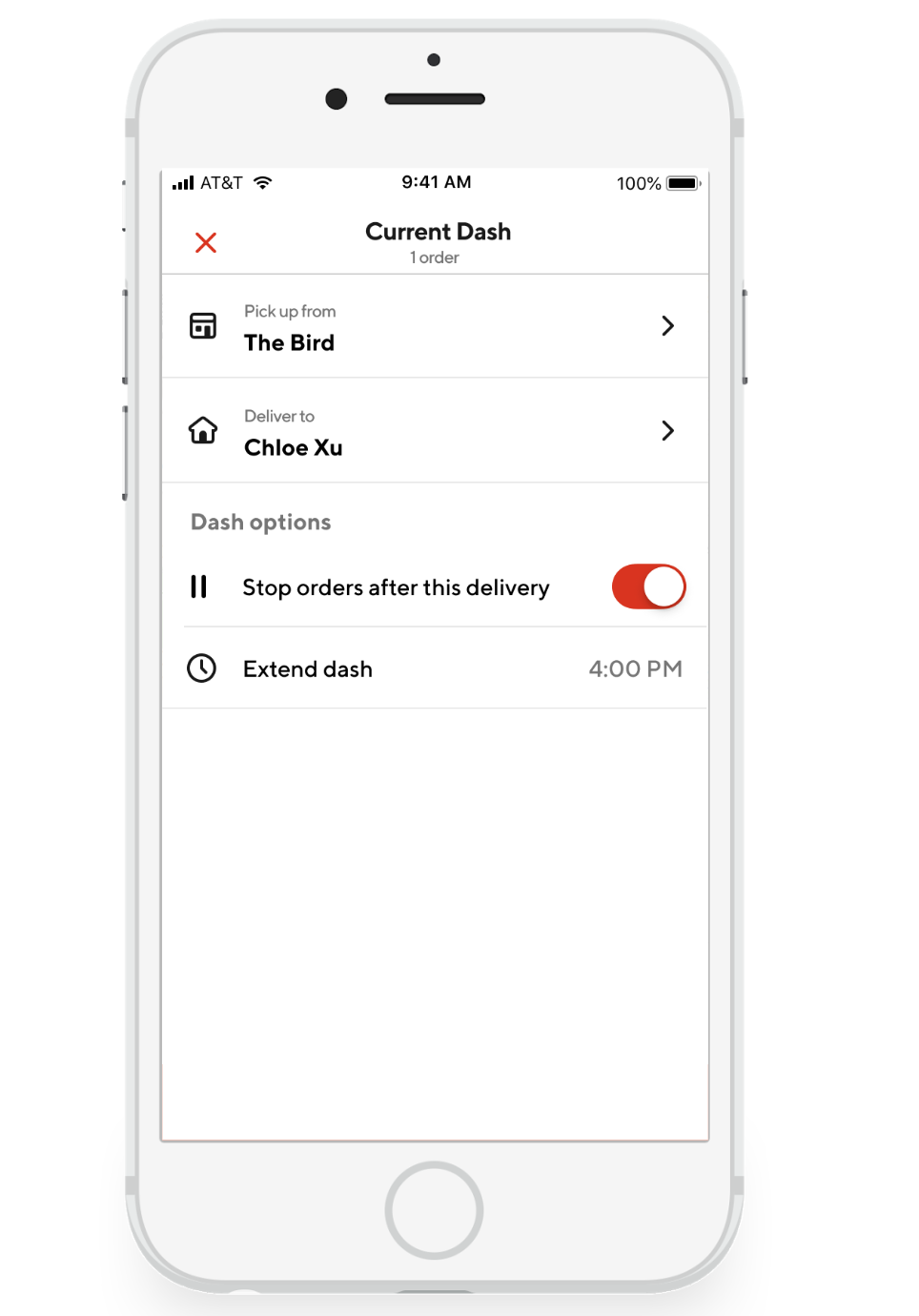
After your current delivery is complete, you’ll stop receiving new orders for up to 35 minutes. If you do not tap Resume Dash or End Dash by then, the app will automatically end the Dash for you.


Pausing a Dash while looking for orders
You can also pause a Dash while you’re looking for orders and want to take a break.
Tap the menu icon at the top left corner of your screen.
Under Dash options, tap “Pause orders”