Change or reset your password
Change or reset your password
Please follow the instructions below to change your password. Currently, you can only change your Dasher account password by resetting it.
On iOS or Android
Log out of the Dasher app in Account > Settings tab
In the login screen, click Forgot Password
Enter the email address used for your Dasher account, then click the Reset button.
You’ll receive an email with instructions from no-reply@doordash.com with the subject line “Password reset on www.doordash.com”
Click on the link inside the email. This will take you to a page that prompts you to enter a unique strong password twice.
For tips on creating a strong password, visit Google’s Create a strong password site.
On Desktop
Enter your email address
You’ll receive an email with instructions from no-reply@doordash.com with the subject line “Password reset on www.doordash.com”
Click on the link inside the email. This will take you to a page that prompts you to enter a unique strong password twice.
For tips on creating a strong password, visit Google’s Create a strong password site.
Please note:
If you are also a Customer using DoorDash and you change your password for your Dasher account, you’ll also change the password for your Consumer DoorDash account.
Not Receiving the Reset Password Link?
Check all folders you may have with the email you used to sign up, including junk/spam since the email could have gone to a different folder than usual. If you don’t see any email in any folder continue to the next step.
Find an email DoorDash previously sent to the email you used to sign up. You can do this by searching in your inbox. When you find an email, scroll to the bottom and you will see a “Unsubscribe” text. Please click on the text, this will open up a web page where you will see “Resubscribe”, please click on “Resubscribe”, this will opt you back in to receive DoorDash emails.
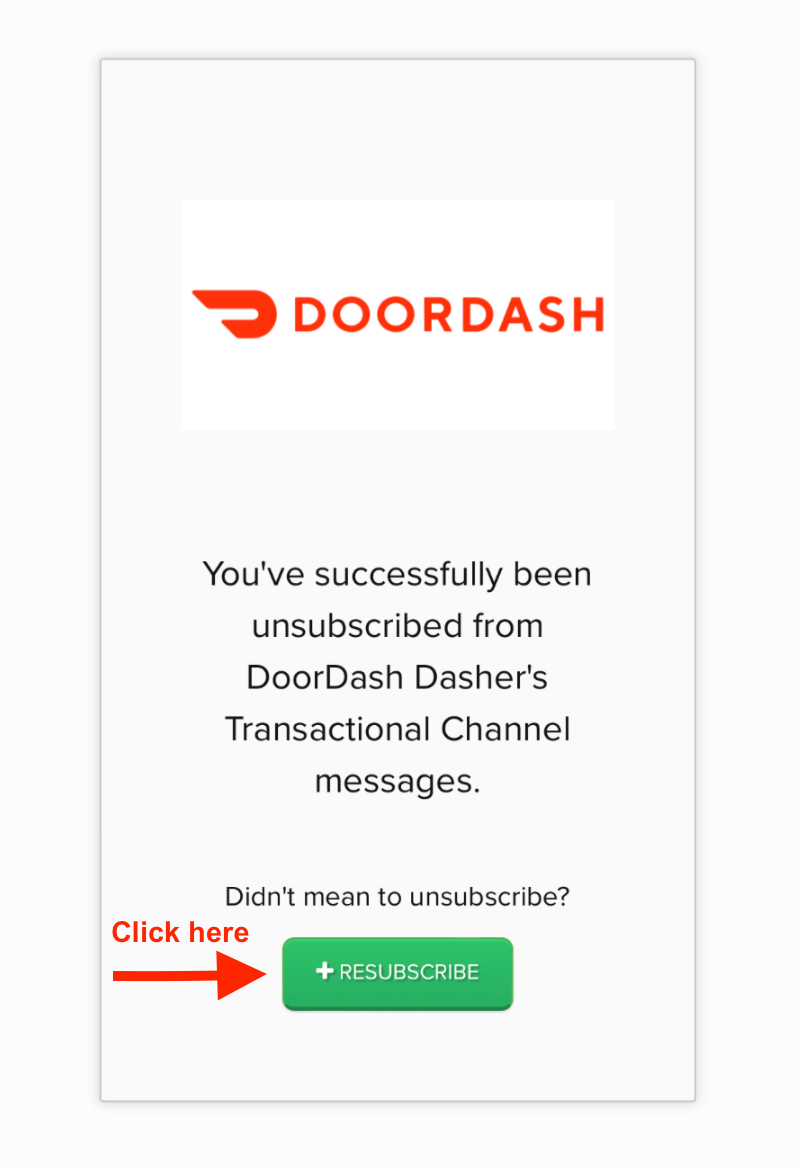
Once this is done visit doordash.com/accounts/password/reset and enter your email. This should send a reset email to your inbox.




