Introduction to the DoorDash Tablet for Restaurants
What is the DoorDash tablet?
The DoorDash tablet is a device that runs the DoorDash Order Manager, a merchant’s central hub for managing delivery orders. With the tablet, they can:
Meet their customers where they are…
Accept and track live orders
Adjust prep times and mark orders as ready
Update store hours (pause and reopen the store)
Mark items out of stock
Handle refunds
Track Dashers
Communicate with Dashers and customers
Access DoorDash Support 24/7
For a restaurant that isn't integrated with its own POS system, the tablet is essentially their DoorDash operation.

What is the value of the DoorDash tablet for a merchant?
Stay on top of the rush: See every incoming order and manage prep times in real time. The tablet works as the main order device (or as a backup where configured) and keeps orders flowing.
Track the entire order: See Dasher status and reach out if pick up needs further coordination.
Catch problems before they escalate: Update item availability and resolve order issues directly by calling/chatting with the Dasher or customer.
Control your availability: Pause the store or adjust hours in real time, instead of taking orders you are unable to fulfill.
There are three main ways merchants can use a DoorDash tablet
Not every tablet plays the same role. Depending on how you take orders, your tablet works in one of three ways:
Tablet as your Primary DoorDash order hub: The tablet is the merchant's main hub for DoorDash orders, with no other system involved.
DoorDash tablet as a Companion to your POS system: Orders run through the merchant's POS system, with the tablet alongside for what the POS system doesn't cover.
DoorDash tablet as a Fallback for your POS system: The tablet sits unused unless the POS system goes down, at which point it takes over so orders keep coming in.
Tablet as your Primary DoorDash order hub
Set Up / Use Case:
Often used if you are a smaller or independent restaurant who can't integrate your POS system or prefer not to, so the tablet is the fastest way to start taking DoorDash orders without changing how your kitchen runs.
Hypothetical Example:
A noodle bar does not have its own POS system and runs DoorDash entirely on the tablet: orders come in, get accepted, and get managed right there. It's their main device for the DoorDash side of the business.
DoorDash tablet as a Companion to your POS system
Set Up / Use Case:
Often used if you are a higher-volume or multi-location brand so that orders drop straight into your existing POS system — no extra device, and it scales cleanly across stores. You still keep the tablet alongside your POS system for what only the tablet gives you: a live view of the order and Dasher, and a direct line to contact the customer and Dasher.
Hypothetical Example:
A bagel shop takes all orders (in-person and DoorDash) through its Square POS system, but keeps a tablet on the counter for what Square can't do: watching the order live, tracking the Dasher, and reaching out directly to both the Dasher and customer if something goes wrong.
DoorDash tablet as a Fallback for your POS system
Set Up / Use Case:
You run orders through your POS system by default, with the tablet sitting idle as a backup. If the POS system’s connection ever drops, the tablet automatically takes over so orders keep coming in, giving you continuity without relying on a single system.
Hypothetical Example:
A taco restaurant runs all orders (in-person and DoorDash) through their Toast POS system by default, but if their Toast connection drops, the tablet steps in automatically so orders keep flowing instead of stopping cold.
Getting Started on the tablet
Powering On the tablet:
Q: How do I turn on the DoorDash tablet?
Follow these steps the first time you use your tablet:
Press and hold the power button to turn on the tablet
When the screen turns on, tap the DoorDash icon
Tap “Let's Get Started”

Logging in to the tablet:
Q: How do I log in to the DoorDash Order Manager?
The DoorDash Order Manager app lets you manage orders in real time, mark items out of stock, communicate with Dashers, and resolve issues with 24/7 Support.
If you have a DoorDash tablet:
Your tablet usually arrives already logged in. If you are signed out:
Open the Order Manager app on your DoorDash tablet
Log in using the username and password provided
Your login details can be found in the email sent when your tablet shipped or on the back of the tablet
If you're using your own Android tablet:
Download Order Manager from the Google Play Store
Open the app
Contact Merchant Support to receive a tablet username and password
If you want to use the DoorDash tablet as your primary order device, contact Merchant Support.

Reviewing your menu:
Q: How do I review my menu on my DoorDash tablet?
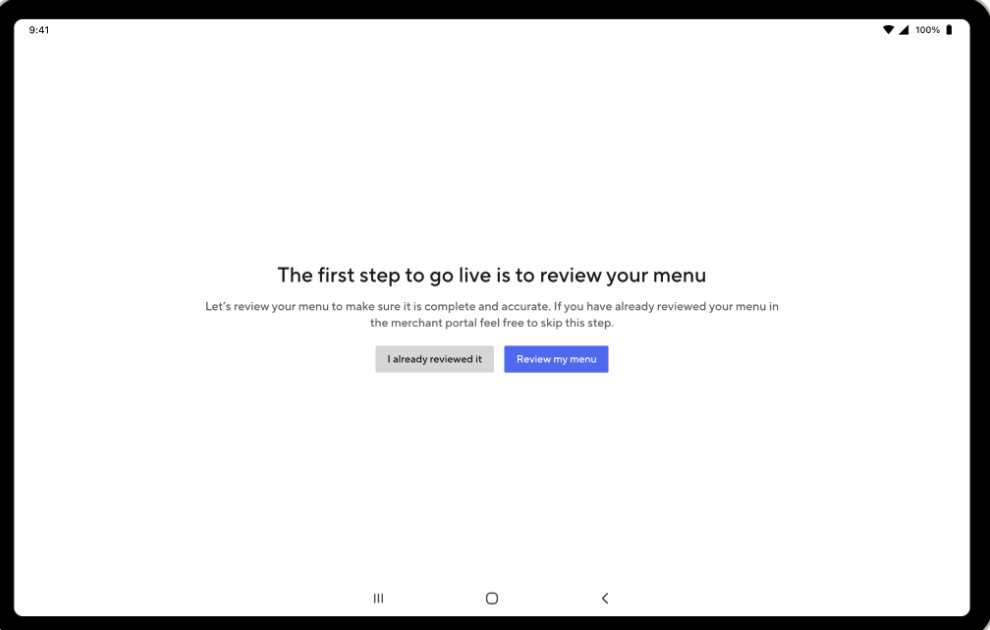
Before reviewing your menu on your tablet, make sure that you first set it up on the Merchant Portal. Make the final approval of all the items on your menu using your DoorDash merchant tablet to make sure it reflects everything available in your store.
If you’ve already reviewed your menu on the portal, tap “I Already Reviewed It”.
If you haven’t reviewed it yet or don’t know what that means, tap “Review My Menu”.
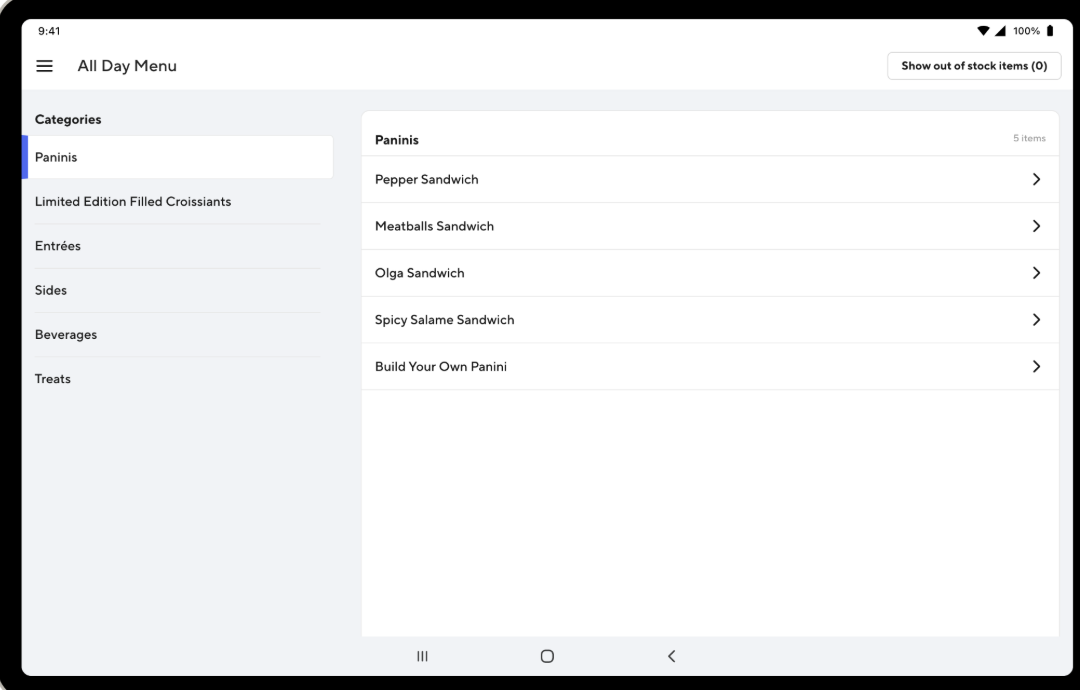
If you need to review your menu, you’ll find all your categories listed on the left side of the screen.
Tap a category to view all the items in that category at once.
Tap an individual item to see its details.
Q: How do I set an item’s availability?
Tapping into an individual item will display the options associated with that item.
If any of these optional items are out of stock, switch the ‘In Stock’ toggle next to the item.
Select the period of time you want an item to be listed as out of stock, then tap “Apply”. Once your store goes live, you’ll be able to edit these settings at any time using your tablet.


Q: How do I approve my menu on my DoorDash tablet?
If everything reflects what’s available in your store, then you’re ready to approve your menu.
Once you’ve reviewed your menu, tap “I Have a Few Edits” if you still want to make edits.
If you have no further changes, tap “Yes, Looks Great”.

Q: How do I go live with my menu?
Once you’ve reviewed your menu and everything looks good, then you’re ready to go live.
Tap “Go Live” to get your store live on the DoorDash platform.
Go live during your store open hours, so your customers will be able to find and order from you right away.

Test Order:
Q: How do I create a test order on my DoorDash merchant tablet?
Creating a test order is a great way to double-check your store is set up accurately and familiarize yourself with order flow.

Order Flow
1. Order comes in

2. Accept the order
For seamless order ingestion, we recommend setting up ‘auto-confirm’ in settings

3. Prep the order
Adjust prep time in real time to help manage customer expectations

4. Mark the order “ready for pick up”
Let the Dasher know exactly when to pick up up, avoiding food getting cold or Dashers waiting around

5. Confirm handoff to Dasher
Track Dasher status so prep time and pick up are coordinated as well as to manage expectations during rush hours

Order Management
Help with order:
The ‘help with order’ button is used to report a problem or make changes.
Merchant and Customer Value: flagging an issue (missing item, mistake, an order that can't be fulfilled) immediately gets the merchant a faster resolution (like a refund adjustment) instead of waiting for the customer to complain, avoiding the risk of low ratings. For the customer, that means the problem gets caught and handled before it turns into a bad experience or support call.


Marking items ‘out of stock’:
Merchant Value: Keeps their menu accurate in real time, so customers never order something they can't fulfill — protecting their ratings and avoiding refunds before they happen.
Option to contact the customer directly: call or chat to work out a suitable replacement, issue a partial refund, or cancel the item when something's out of stock.


Cancelling an order:
Merchant and Customer Value: When you can't fulfill an order, cancel it directly from the tablet: open Merchant Support, tap ‘cancel order’, then select the reason that fits.
Cancelling an order directly from the tablet gives the customer an immediate, accurate answer instead of leaving them waiting and creating a poor customer experience. This also allows support to be notified automatically.


Contacting support:
Merchant Value: Most order issues can be fixed right from the tablet using the previous steps in this section. If a merchant has tried them and still need help, they can tap 'Help with order', then 'General support' to chat with a live DoorDash Support agent, 24/7.
Unlike POS system-only merchants who have to call Support, tablet merchants can get help without leaving the screen where they manage orders.

Troubleshooting
Help merchants self-serve on these most common topics to reduce support inbounds.
Q: How do I pair my printer to the tablet?
A:
In Order Manager: Menu → Settings → Set up a printer → select "TM-m30III"
Press and hold the Pair button on the back of the printer for 5 seconds (green light blinks)
Select "TM-m30III" from the device list, tap OK to confirm pairing
If it's already paired but not printing: unpair first (swipe down → hold Bluetooth icon → gear next to device → unpair), then repeat the pairing steps
Q: How do I reset my tablet login?
A: Tablet login is separate from Merchant Portal login, but the reset happens in Merchant Portal: Settings → Account Settings → Tablet Settings, where merchants can view login details or reset the password
Q: What should I do if my tablet is crashing or not loading?
A:
Confirm the tablet has power: hold the power button 5+ seconds if it won't turn on, and charge for at least 30 minutes if the screen stays dark
Check WiFi in the Order Manager App: Menu > Settings > Network Settings and then they can toggle WiFi off and on