How to appeal Dasher account deactivations?
If your Dasher account is deactivated, you’ll receive an email with the subject “Your Dasher account has been deactivated” that includes the reason for deactivation and instructions on how to appeal. For most deactivations, you can appeal directly in the Dasher app. However, for deactivations related to Background checks, please refer to the deactivations section at the bottom of this article.
You can for up to 1 year from the date of account deactivation.
Seattle Dashers have 90 days from the date of deactivation to appeal.
In-App Appeal and How it works:
Starting an in-app appeal To begin an account deactivation appeal in-app, first log into your Dasher account. You will see a screen similar to the one below. Tap the ”‘Start appeal” button to begin your appeal.

2. Submitting an in-app appeal. After you tap the “Start appeal” button (image above), you will be taken to a screen where you can provide details about why you believe your dasher account should be reactivated (see image below).
Add details — Select a reason for account reactivation. This field is required, so add as much relevant context as you can to support the reason selected.
Add attachments (optional) — You can attach photos, documents, or videos to support your reason. Tap “Add” to take a photo with your camera, choose from our photo library, or pick a file from your file manager. Review the “What you can attach” section below for accepted formats and file size limits.
Submit your appeal — When you’re ready, tap “Submit”. You’ll see a brief pending state while your appeal is sent.
What you can attach
Clear photos, screenshots, documents, and short clips may help us understand the situation better.
Type | Limits |
|---|---|
Photos & documents | 5 files max. 25 MB each |
Videos | 2 files max. 250 MB and 90 seconds each |
Total | 10 filesmax 500 MB max |
Accepted formats: JPG, PNG, HEIC, PDF, MP4, MOV.

3. In-App appeal status updates.
After submitting an appeal, you will receive live updates directly in the Dasher app, including confirmation that your appeal was received, an estimate of when you can expect a resolution, and the status of the appeal. Any time you open the Dasher app while your appeal is being reviewed, you will see the status page and any available updates. You can track the status of your appeal in the Dasher app. There are three stages:
Submitted — Your appeal was received and awaiting review.
Under review — Your appeal is being reviewed and you’ll see an estimated resolution date.
Decision — A final determination has been sent to you by email
At any stage, you can tap View what you sent to see the reason, description, and attachments you submitted.


4. In-App App Appeal Denied. If your appeal is denied you’ll be notified via email and your status screen will update to Rejected.
If you’re eligible to reappeal, you can do so after 90 days. The date your next appeal window opens will clearly shown.
If you’re not eligible to reappeal, your screen will indicate that no further appeals are available.
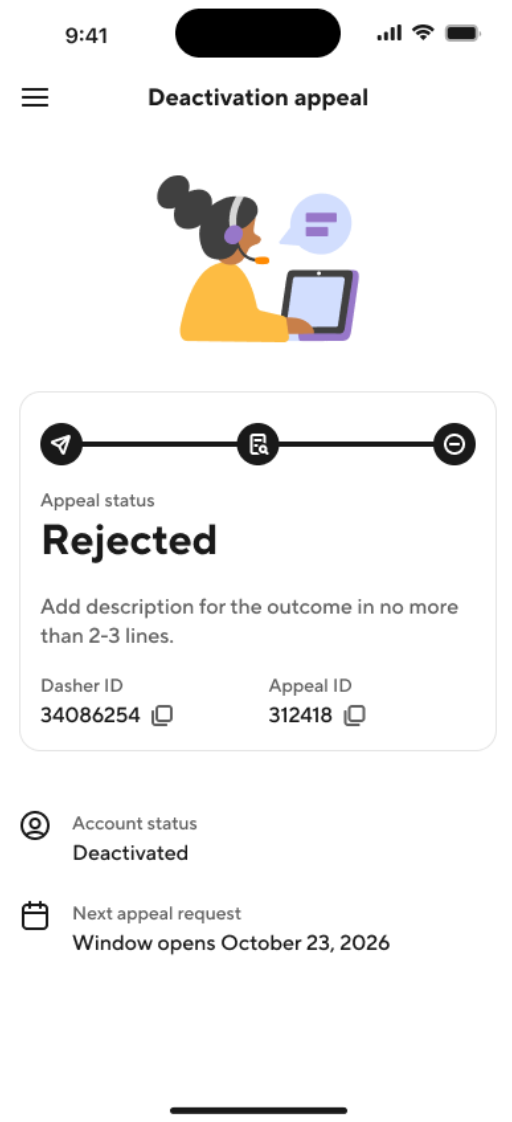

5. In-App Appeal Accepted. If your appeal is approved you’ll be notified that your account has been reactivated. You’ll be able to log in and continue dashing.
Appealing Background Check Related Account Deactivations
If your Dasher account has been deactivated as a result of your background check report, the steps you should take depend on whether you believe the information in your background check report is inaccurate or you would like DoorDash to consider additional context.
Your Pre-Adverse Action notice, sent from DDChAANotices@doordash.com, includes a copy of your background check report and information about your rights and next steps.
Scenario A: Information in my background check report is incorrect or outdated
If you believe information in your Checkr report is inaccurate (for example, a charge does not belong to you, details are incorrect, or information is outdated), you can dispute the report directly with Checkr.
To submit a dispute:
1. Log in to the Checkr Candidate Portal.
2. Identify the information you believe is inaccurate.
3. Follow the instructions to submit your dispute and any supporting documentation.
NOTE: Background checks completed more than 12 months ago are not available in the Checkr Candidate Portal. If you cannot access your report, contact Checkr Candidate Support directly to request a copy and learn how to submit a dispute.
For questions or assistance with the dispute process, contact Checkr Candidate Support.
Scenario B: The information in my background check report is accurate, but I would like DoorDash to consider additional information
You may ask DoorDash to consider additional context as part of your Dasher account deactivation appeal. Email your request and supporting materials to checkr-review@doordash.com.
You may submit information related to rehabilitation, mitigating circumstances, or other relevant context. Examples include:
Certificates showing completion of educational, job-training, counseling, treatment, or rehabilitation programs
Documentation of coursework, community service, occupational certifications, or community involvement
Letters of recommendation or support from teachers, counselors, supervisors, members of the clergy, probation or parole officers, or others who know you
Documentation demonstrating rehabilitation or good conduct
Any other information you would like DoorDash to consider
Attach relevant documents to your email and explain briefly how they relate to your request. DoorDash will carefully review your appeal and any supporting information before making a decision.



