Editing Modifier Settings on your Menu
Editing Modifier Settings on your Menu
Changes to modifier settings can be made in the Menu Editor in your Merchant Portal by following the steps and watching the video below.
Editing Modifier Settings - Video Guide
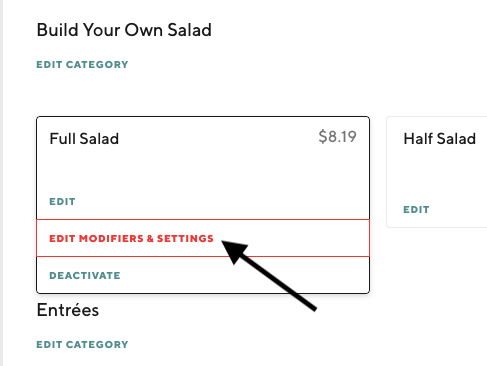
Click Edit Modifiers & Settings on the item with the modifier that you would like to edit
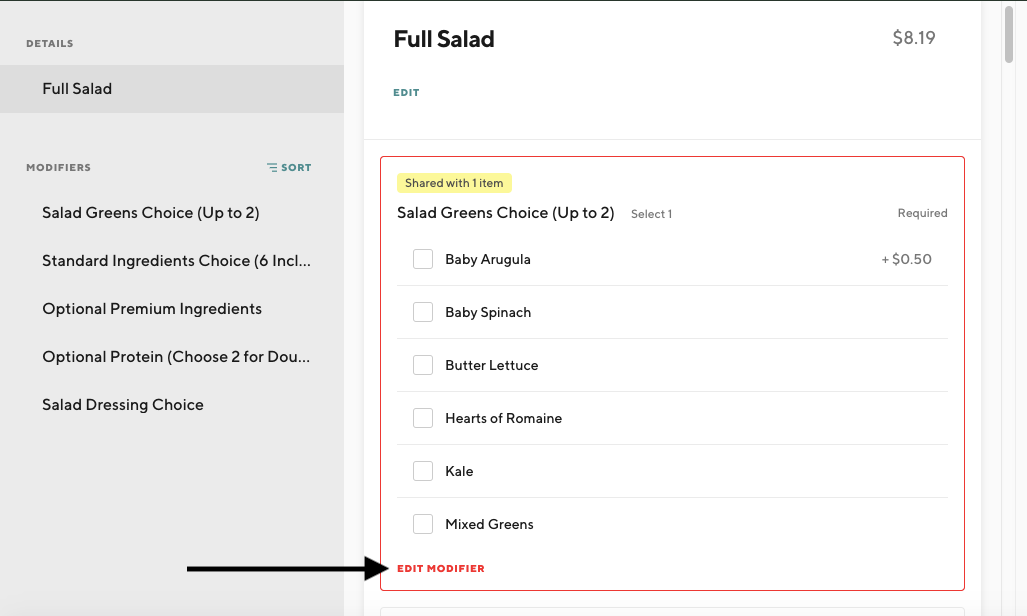
On the next screen, click Edit Modifier at the bottom of the modifier
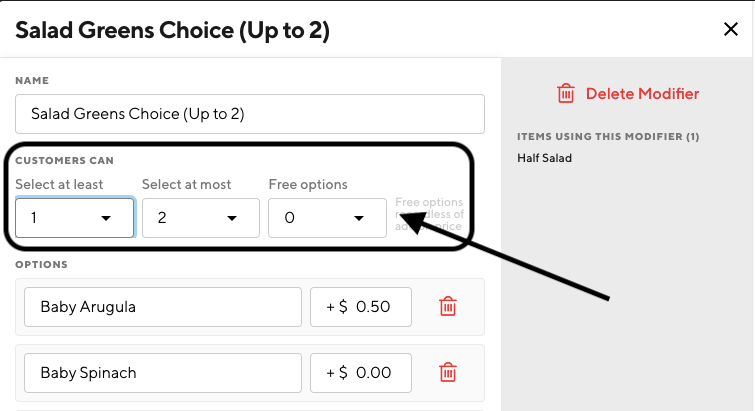
Use the modifier drop downs to edit the Modifier settings
Modifier Settings Guide
Select at least: The minimum selections a customer must make on the modifier. Set this to 0 if the modifier is optional.
Select at most: The maximum selections a customer can make on the modifier. This should be set to at least 1 and can not be less than the number in Select at least.
Free options: The number of free options available to the customer. The option is free regardless of add on price. For example, if Free options is set to 1 and each option costs $1.00, the customer will not be charged $1.00 for the first option they select, but they will be charged for the second option they select.


If you have a single menu, you can now edit modifier settings independent of the item:
Click Modifiers at the top
On the Modifiers page, click on the three dots to the right of the modifier that you would like to edit
In the pop-up that appears, click Edit Details
In the right panel, set Rules for the way your customers can select the options in this modifier
Rules Settings Guide
Require a selection: Turning this switch on will require your customers to select at least one option in order to add the item to the cart
Allow multiple selections: Turning this switch on will allow your customers to select more than one option
Minimum (only if “Require a selection” is turned on): The minimum selections a customer must make on the modifier
Maximum: The maximum selections a customer can make on the modifier (can be set to “No Max”). The Maximum can not be less than the Minimum.
Maximum Free: The number of free options available to the customer (can be set to “No Max”). The option is free regardless of add-on price. For example, if Maximum Free is set to 1 and each option costs $1.00, the customer will not be charged $1.00 for the first option they select, but they will be charged for the second option they select.





