Dasher Signup Process - New Zealand
Dasher Signup FAQs
In this article:
How do I sign up to become a Dasher?
How can I check my progress and continue the signup process?
How long does it take for me to be activated?
How do I know when I have been activated?
How do I complete my background check?
How can I change the information I provided at sign-up?
How can I sign up if I already have an existing Consumer account?
I am a DoorDash Consumer and tried to sign up to become a Dasher with information that is different from the one in my consumer app. What can I do to finish the signup process to become a Dasher?
How can I change the email address and phone number in my Dasher profile?
What do I do if I’ve used a different phone number/email address for my background check and DoorDash application?
Frequently Asked Questions:
Q: How do I sign up to become a Dasher?
A: You can find out more information and the step-by-step process on how to sign up to become a Dasher in New Zealand here.
Q: How can I check my progress and continue the signup process?
A: If you have started but not completed the Dasher sign-up process, follow the steps below to check your progress and continue:
Choose “Become a Dasher” in the Dasher app or go to https://dasher.doordash.com in a browser
On the dasher signup page, click “Already started signing up?“, fill in the email and phone number you used to sign up as a dasher, and then click “Sign up”
On the sign-in page, fill in the email and password and click “Sign In” to return to your dasher application.
* If you forgot your password, click “Forgot your password?” and follow the instructions there to reset your password.
Q: How long does it take for me to be activated?
A: Background check applications processing times usually take 5+ business days to be processed by the National Crime Check.
Please note: In some cases these may take longer and processing times can vary depending on factors like manual review required by NCC, large volume of applications with NCC causing potential backlog. The best way to find out the status of your background check processing is to contact National Crime Check directly on Ph: 0800 859 855 or Email: support@nationalcrimecheck.nz
If your background check results show you have (0) zero Disclosable Court Outcomes and Right to Work check is cleared and verified, you will receive prompts to complete your safety module.
Your account is generally activated within 48hrs of your results verified and your safety module is completed.
If your background check results show you have one or more Disclosable Court Outcomes, your information will be reviewed and you will receive information regarding next steps via email!
Please note: Right To Work check results with a visa class of ‘Student Visa’ OR ‘Pathway Student Visa’ is not permitted. Dasher applicants with this Visa class will not be activated as a Dasher and therefore will not be able to deliver with DoorDash.
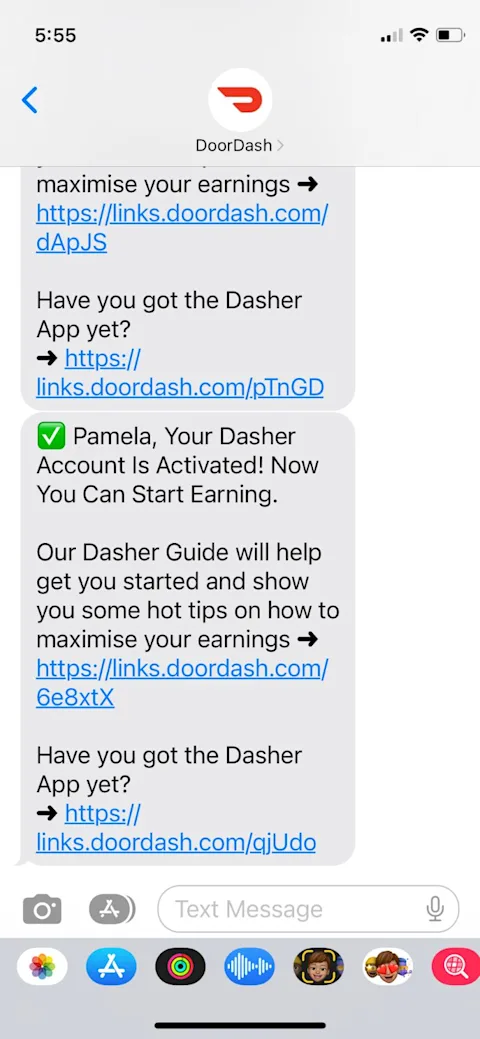
If activated, you will receive a confirmation text message stating: ‘Congrats! Your Dasher Account Is Activated’ OR ‘Welcome to Doordash!’. This means you’re ready to start Dashing!
Q: How do I know when I have been activated?
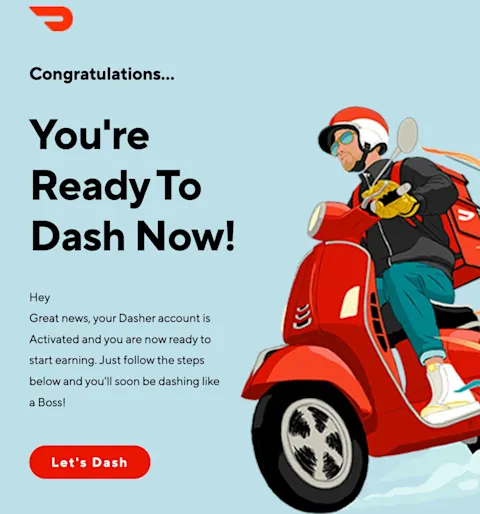
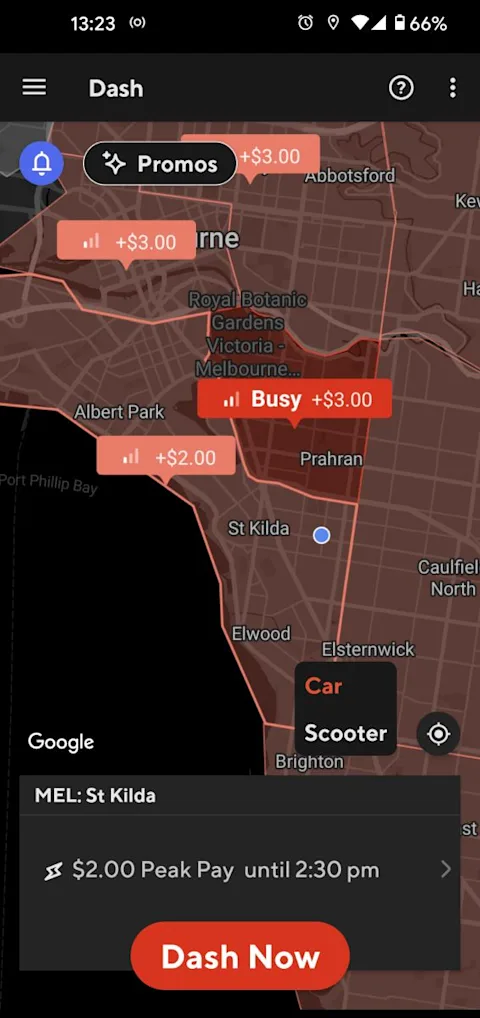
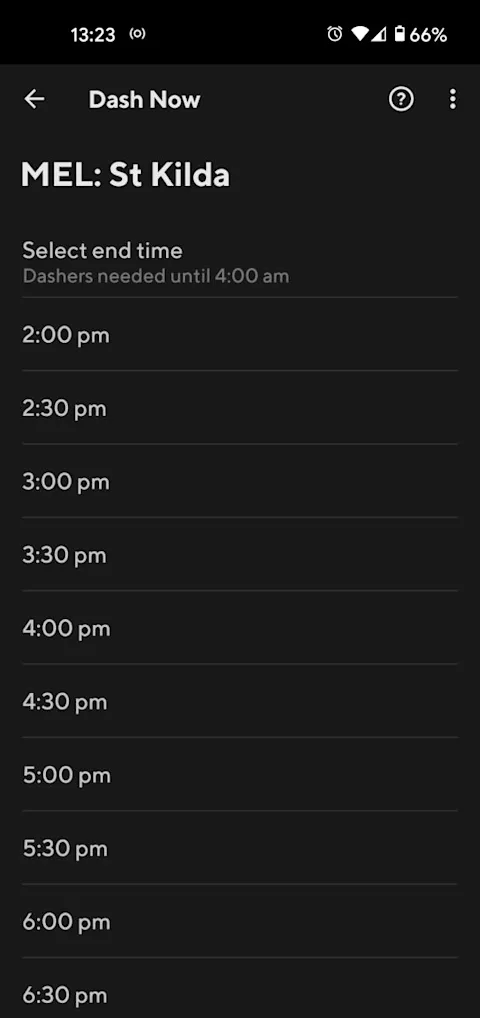
A: Once you have been activated, you will:
Receive a confirmation text message on your registered mobile and email to your registered email address.
Be able to start Dashing!
Q: How do I complete my background check?
A: Please visit here for background check FAQs.
Q: How can I change the information I provided at sign-up?
A: If you need to change any of the information you provided at sign-up, please contact DoorDash Support at 1800-958-316.
Q: How can I sign up if I already have an existing Consumer account?
A: If you are signing up as a new Dasher and have an existing Consumer account, these accounts will be merged. Follow the steps to complete the signup process.
Sign up at https://www.doordash.com/dasher/signup using your postcode, customer email account, and phone number
Upon submission, you will be redirected to http://doordash.com/dasher/login.
Sign in using your customer account email address and password.
Complete two-factor authentication using your phone number or email address.
You will be successfully logged into your Dasher account and can begin to create a profile.
Q: I am a DoorDash Consumer and tried to sign up to become a Dasher with information that is different from the one in my consumer app. What can I do to finish the sign-up process to become a Dasher?
A: Follow the steps below to complete the signup process:
Sign in using your Consumer account email address and password.
Complete two-factor authentication using your phone number or email address.
You will be successfully logged into your Dasher account and can begin to create a profile.
Q: How can I change the email address and phone number in my Dasher profile?
A: Once your Dasher account is activated, you can change your email address by signing in at http://doordash.com/dasher/login using your Dasher email and password. Click the hamburger menu (aka the three bars) at the top left of the screen and click “Account”. On the account page, you will be able to change your email and phone.
Q: What do I do if I’ve used a different phone number/email address for my background check and DoorDash application?
A: Please contact our Dasher Support for assistance.



