How to Add a New Vehicle Dash Type or Switch Between Vehicle Dash Types
How to Add a New Dash Type or Switch Between Dash Types
Dash types are different types of transportation methods a Dasher can select to dash. DoorDash tries to find the most suitable order types depending on your dash type. In most markets, you’ll get the most orders if you dash with a car. In other markets that are more difficult to get around in a car, you might find certain areas are more favorable to dash with a bike instead.
Contents
What Dash types are available?
Why do I need to choose the right Dash type?
How do I view the Dash types that are on my account?
How do I add a new Dash type?
How do I switch my Dash type?
How do I delete a Dash type?
How do I edit an existing Dash type on my account?
Vehicles allowed in DoorDash platform
FAQ
Q: What Dash types are available?
A: Below are the available dash types in US. Please note dash types available to you are dependent on your market.
Car (motorized)
Motorcycle (motorized)
Scooter (motorized)
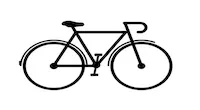
Bicycle
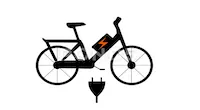
Ebike
You can add more than one Dash type to your account. Remember to choose the right Dash type when you start a shift.
Q: Why do I need to choose the right Dash type?
A: Selecting the right Dash type ensures that you are getting the right orders for your vehicle type, which factors things like distance, weight, and size of the orders you get.
Q: How do I view the Dash types that are on my account?
A: To view the Dash types that are currently on your account, please follow the steps below.
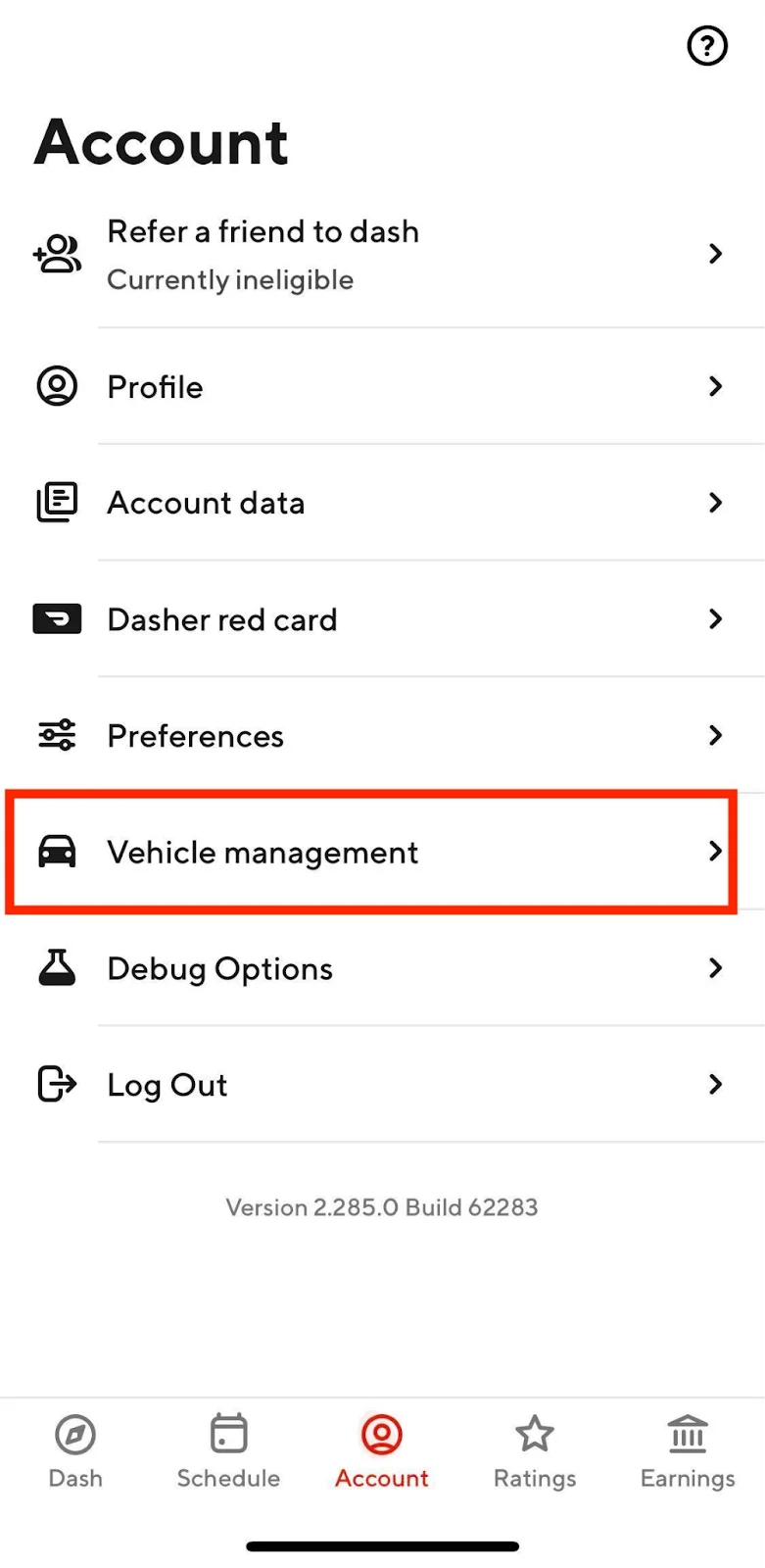
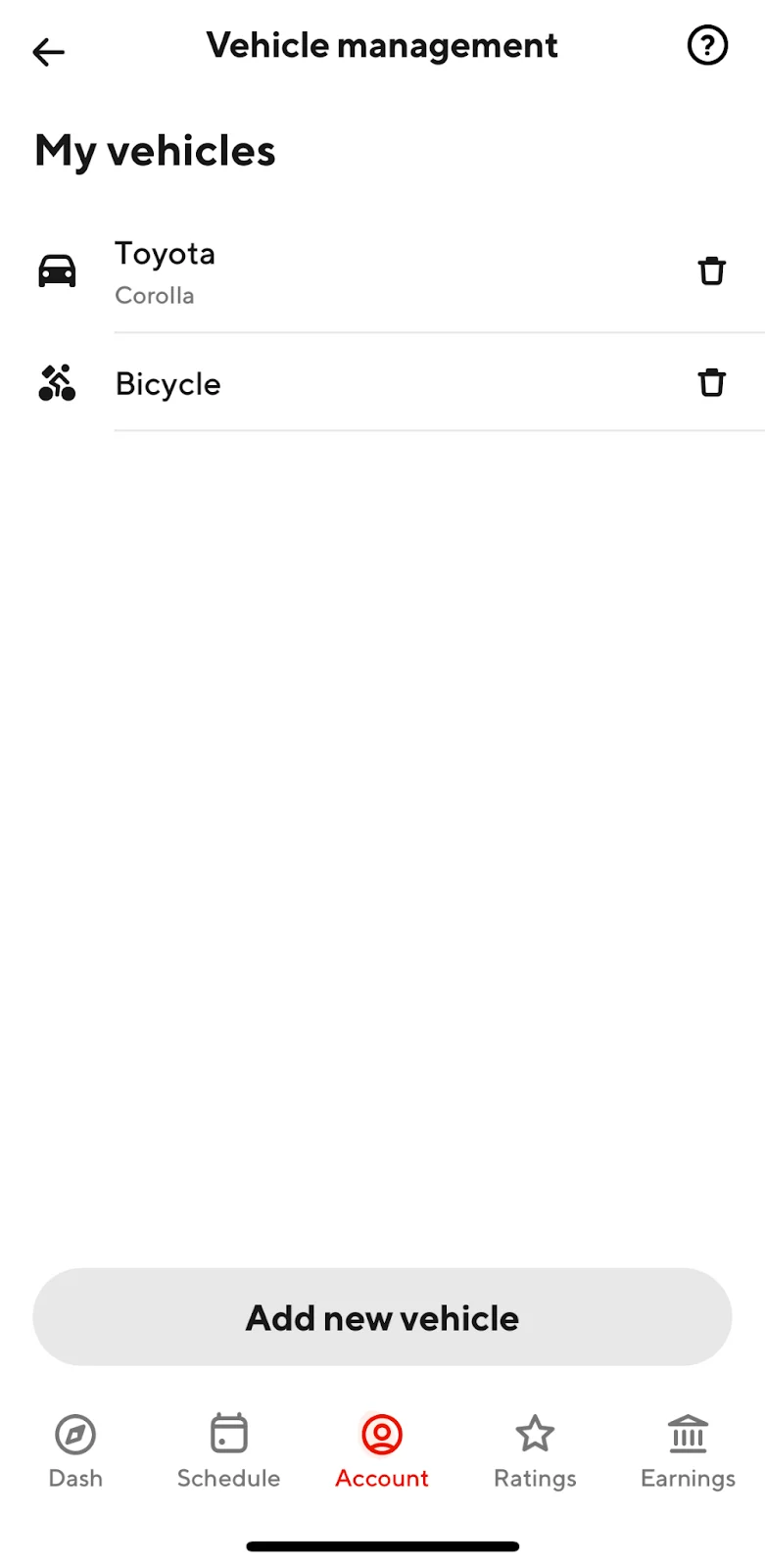
iOS Version
1. Tap on the Account tab on your Dasher app 2. Select Vehicle Management |
|
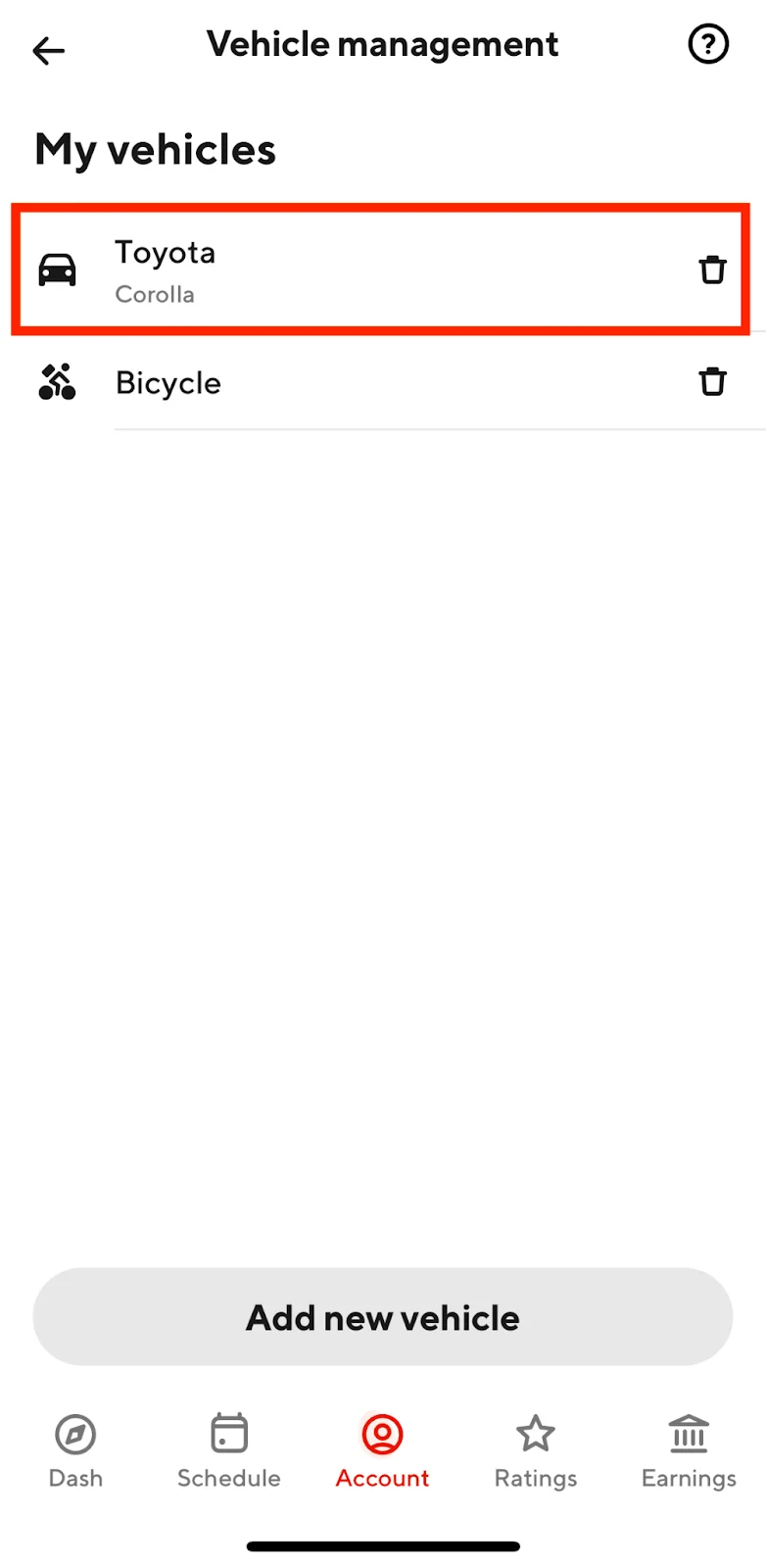
3. This will show My vehicles currently available on your Dasher account |
|
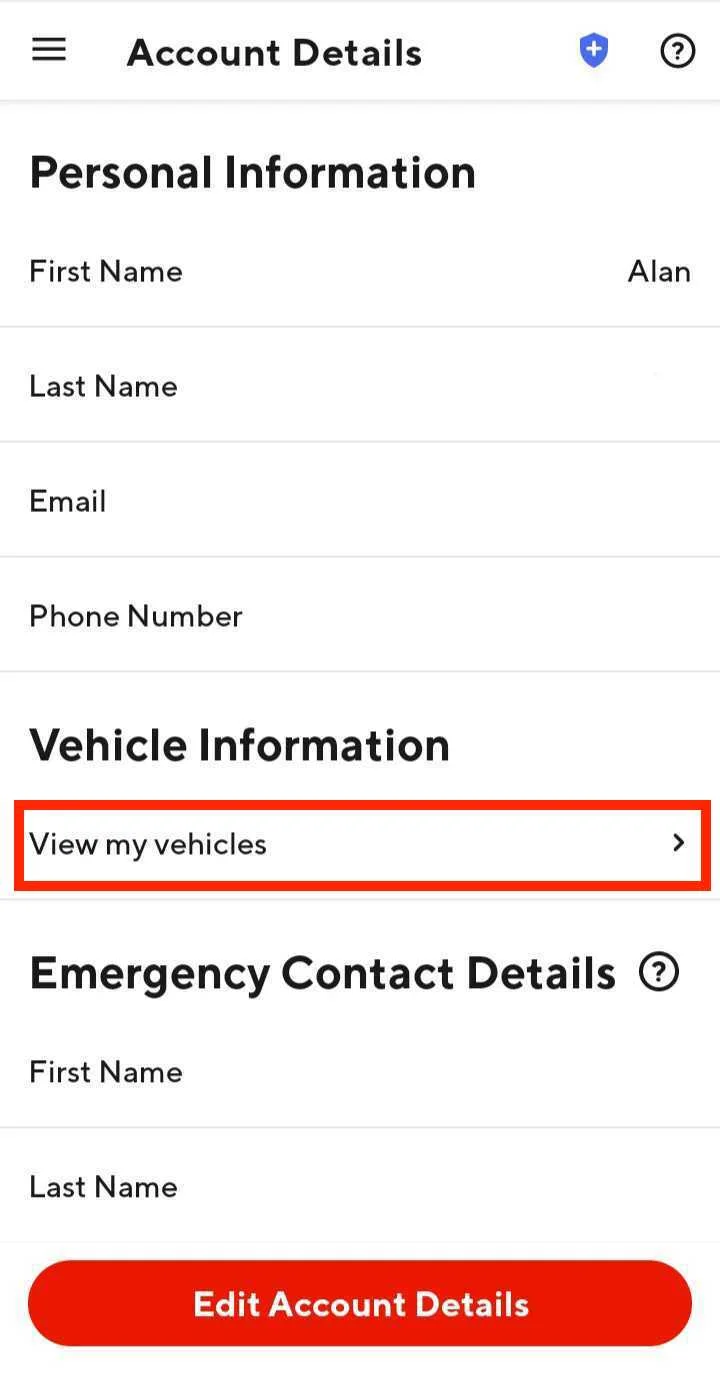
Android Version
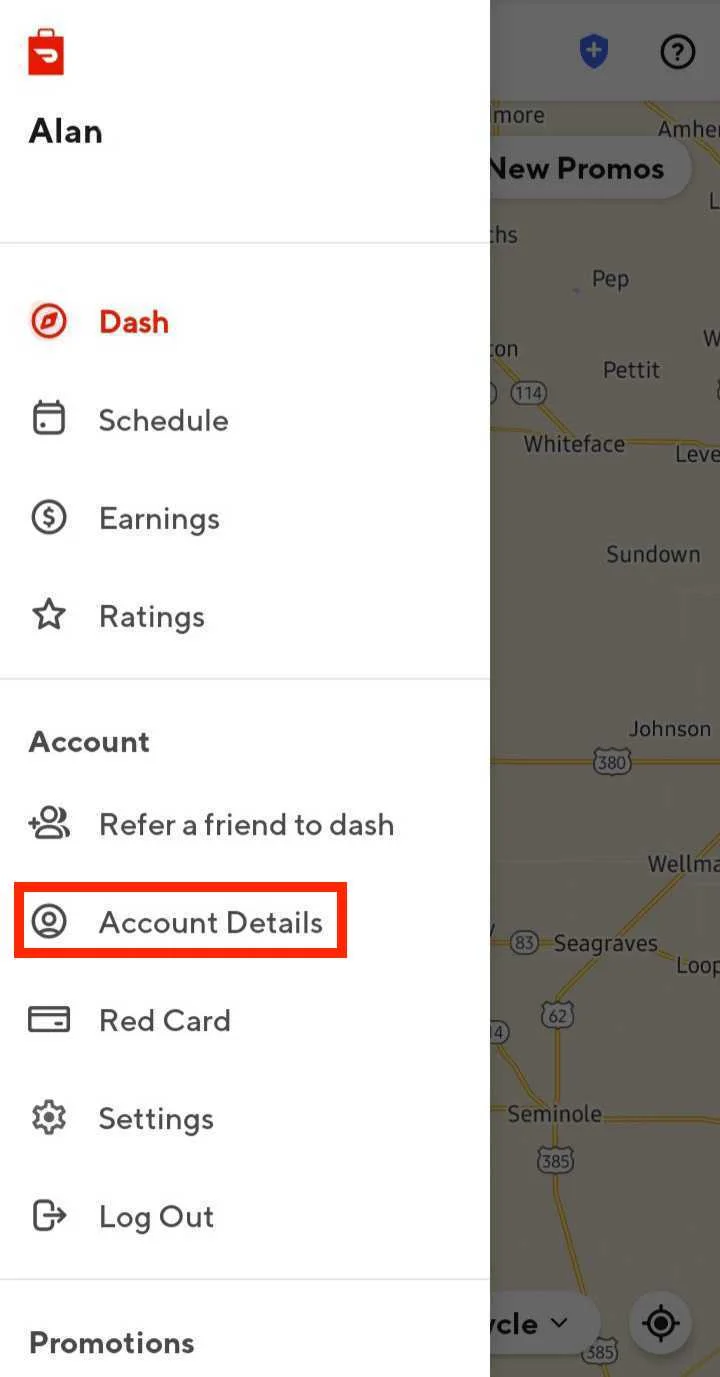
1. Tap on the hamburger icon on the top left of your app 2. Go to Account Details |
|
3. Under “Vehicle Information” select View My Vehicles |
|
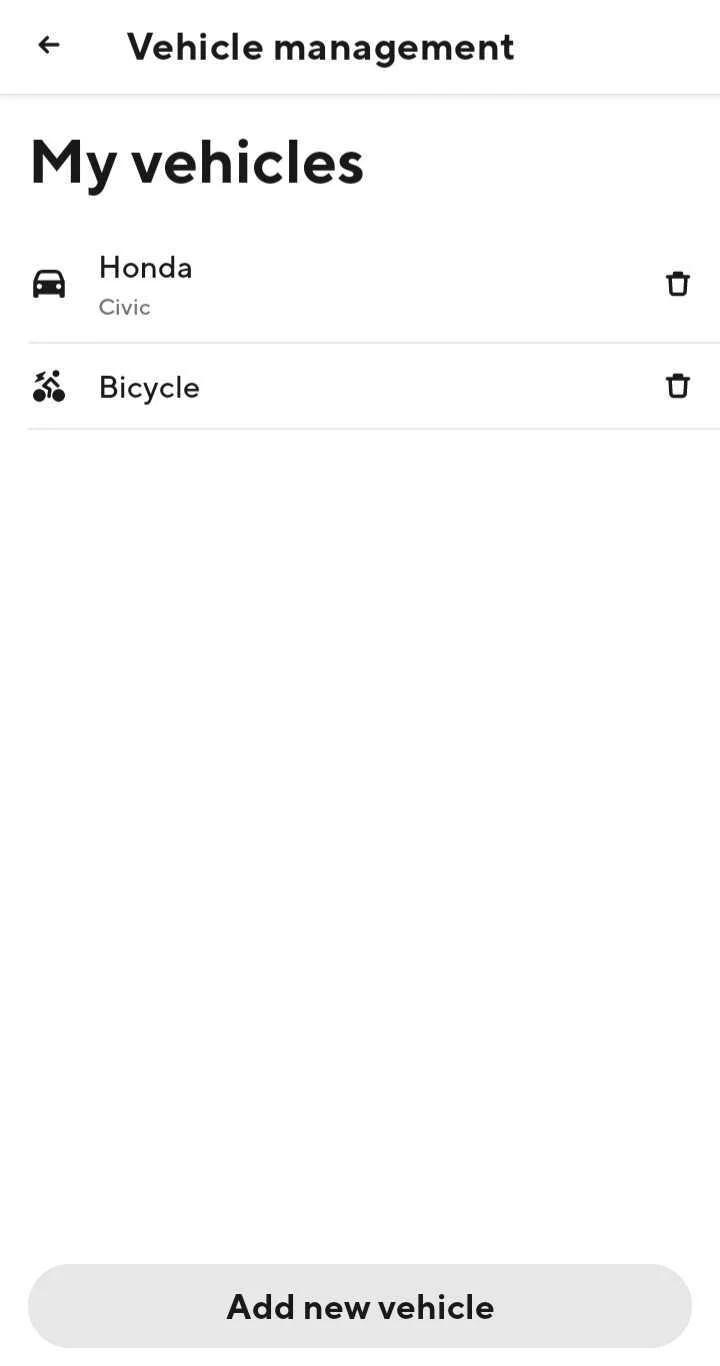
4. This will show My vehicles currently available on your Dasher account |
|
Q: How do I add a new Dash type?
A: You can now add or edit a Dash type (eg. add a scooter or bike in addition to an existing car) in the app.
iOS Version
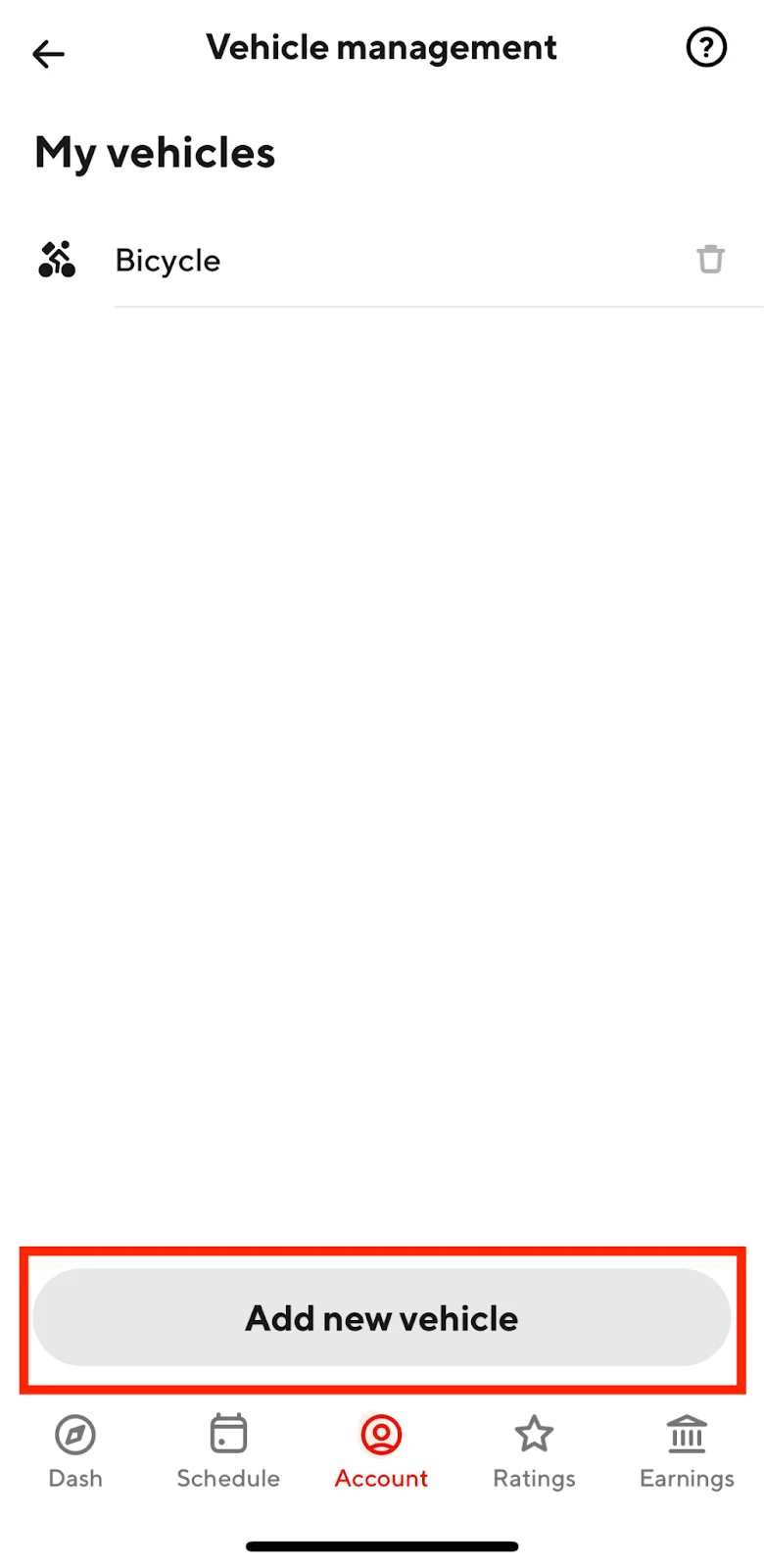
1. From the Vehicle Management section on your Dasher app, tap Add new vehicle |
|
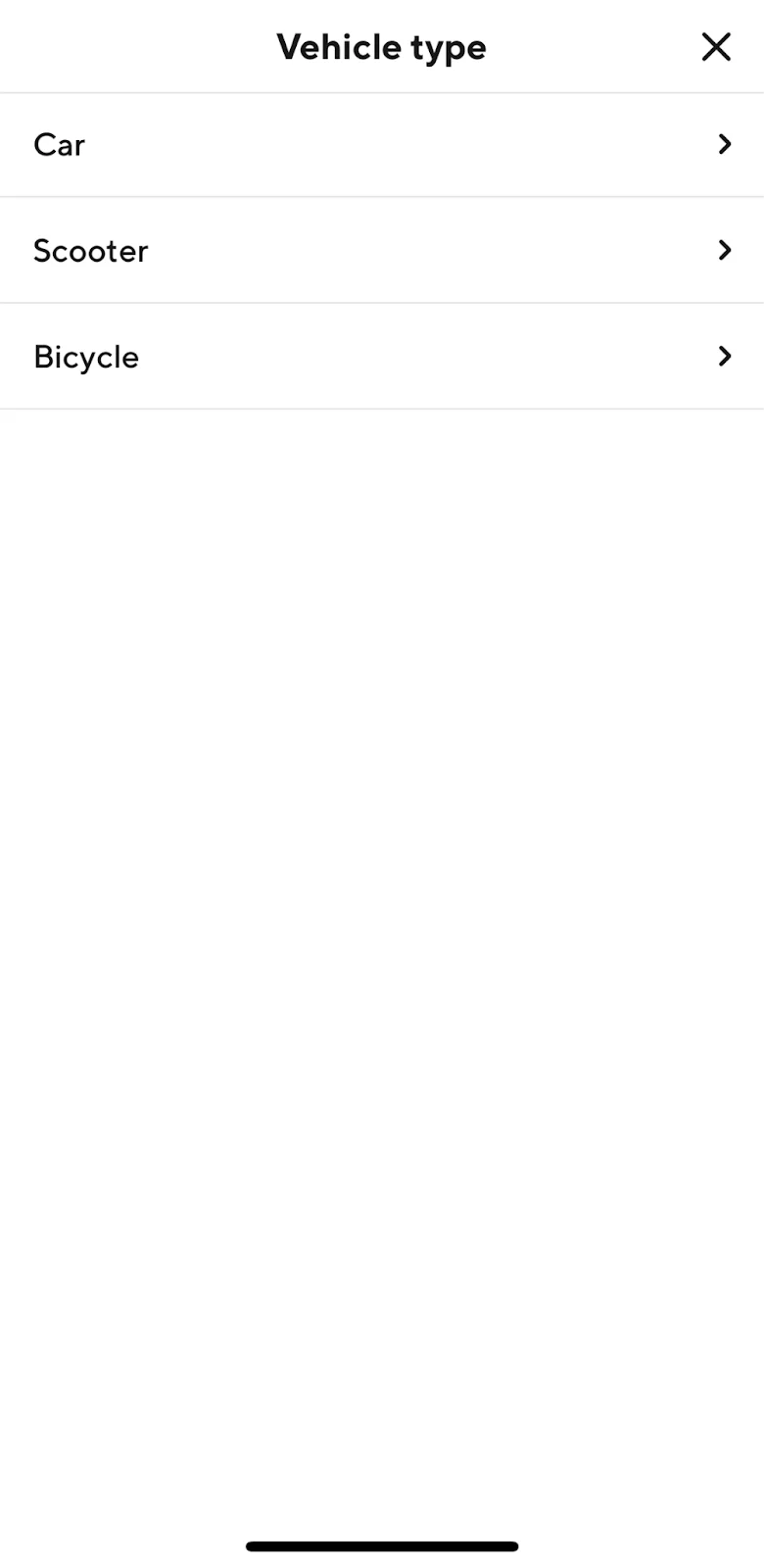
2. Select the vehicle type you would like to add to your account Please note dash types available to you are dependent on your market |
|
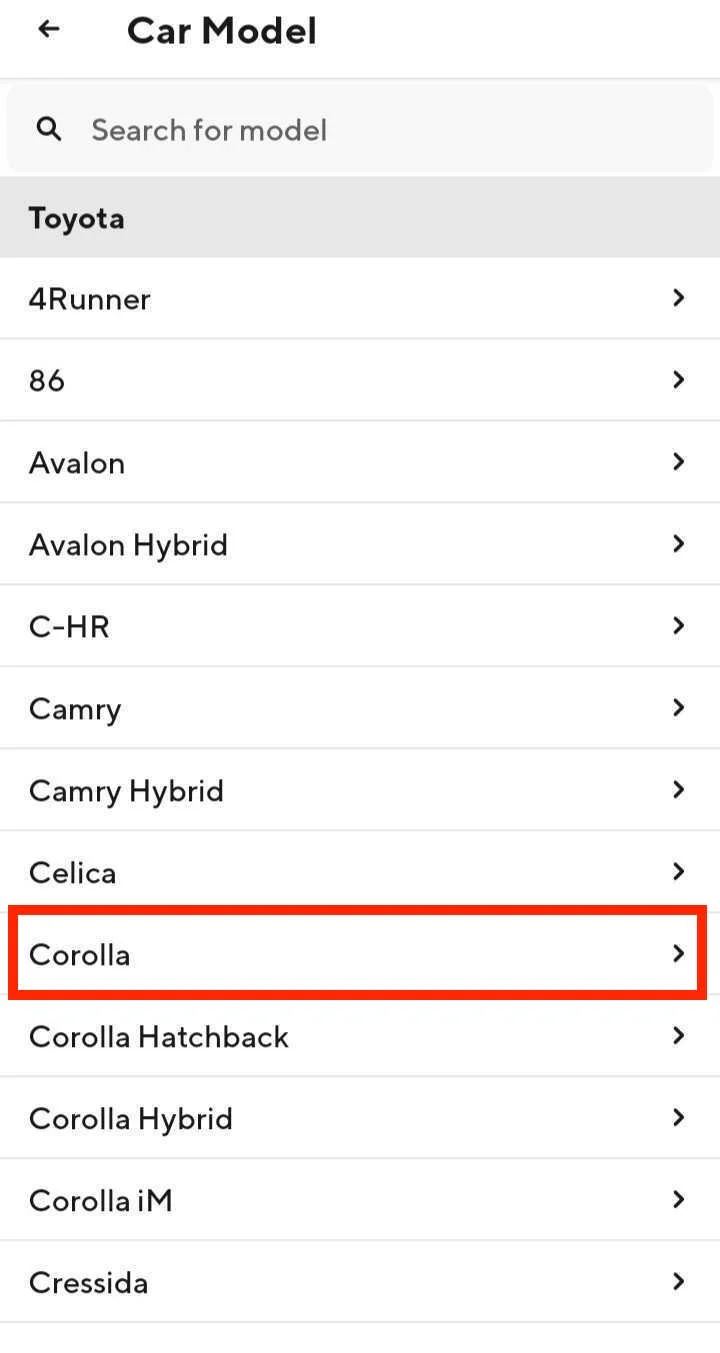
3. If you add a car to your account, you will be required to also add the Car make and Car model |
|
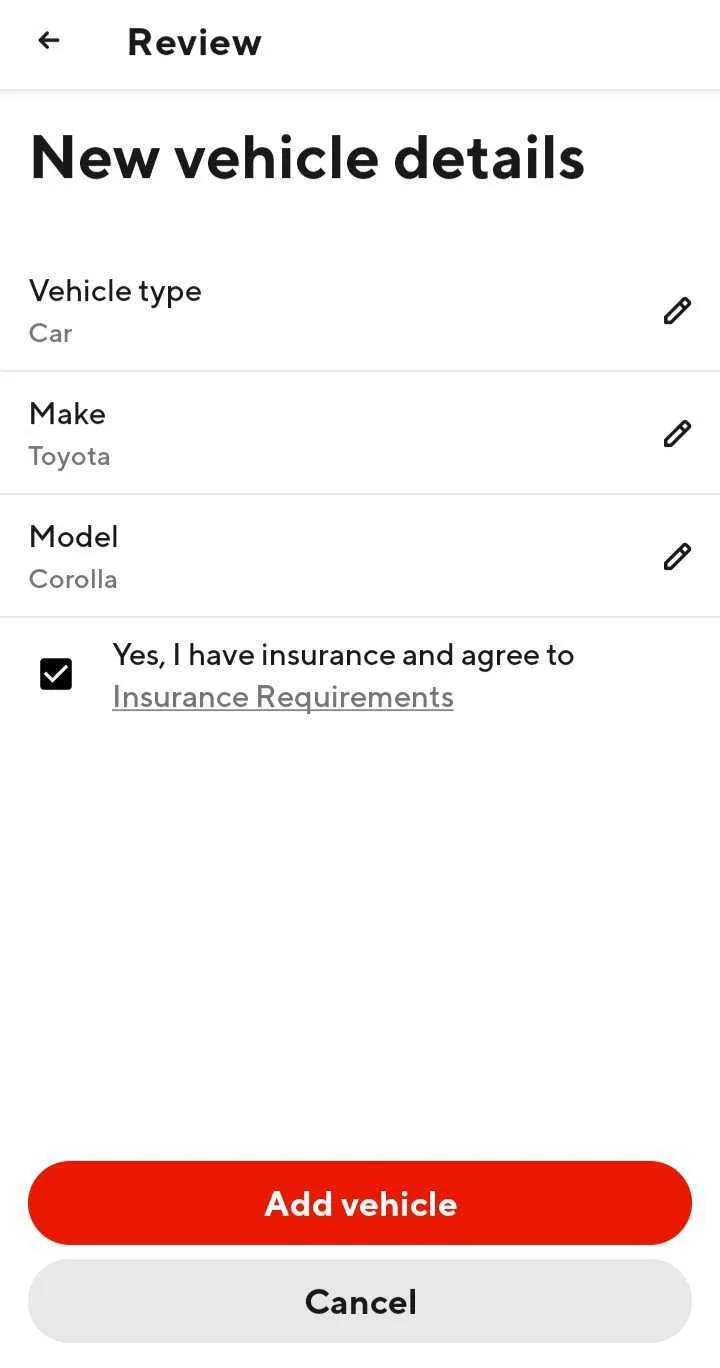
4. Review the new vehicle details and confirm that you have insurance and agree to the Insurance Requirements 5. Tap Add Vehicle |
|
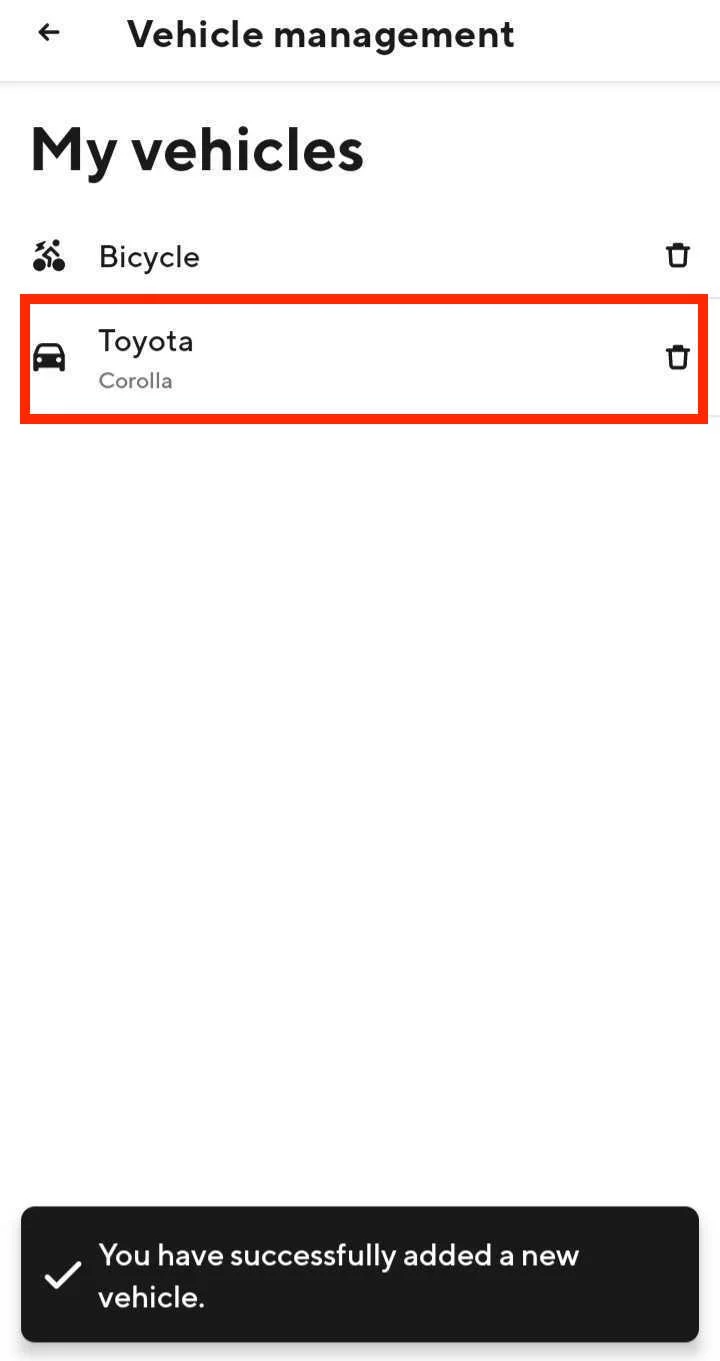
6. Your new vehicle will appear under your My vehicles section |
|
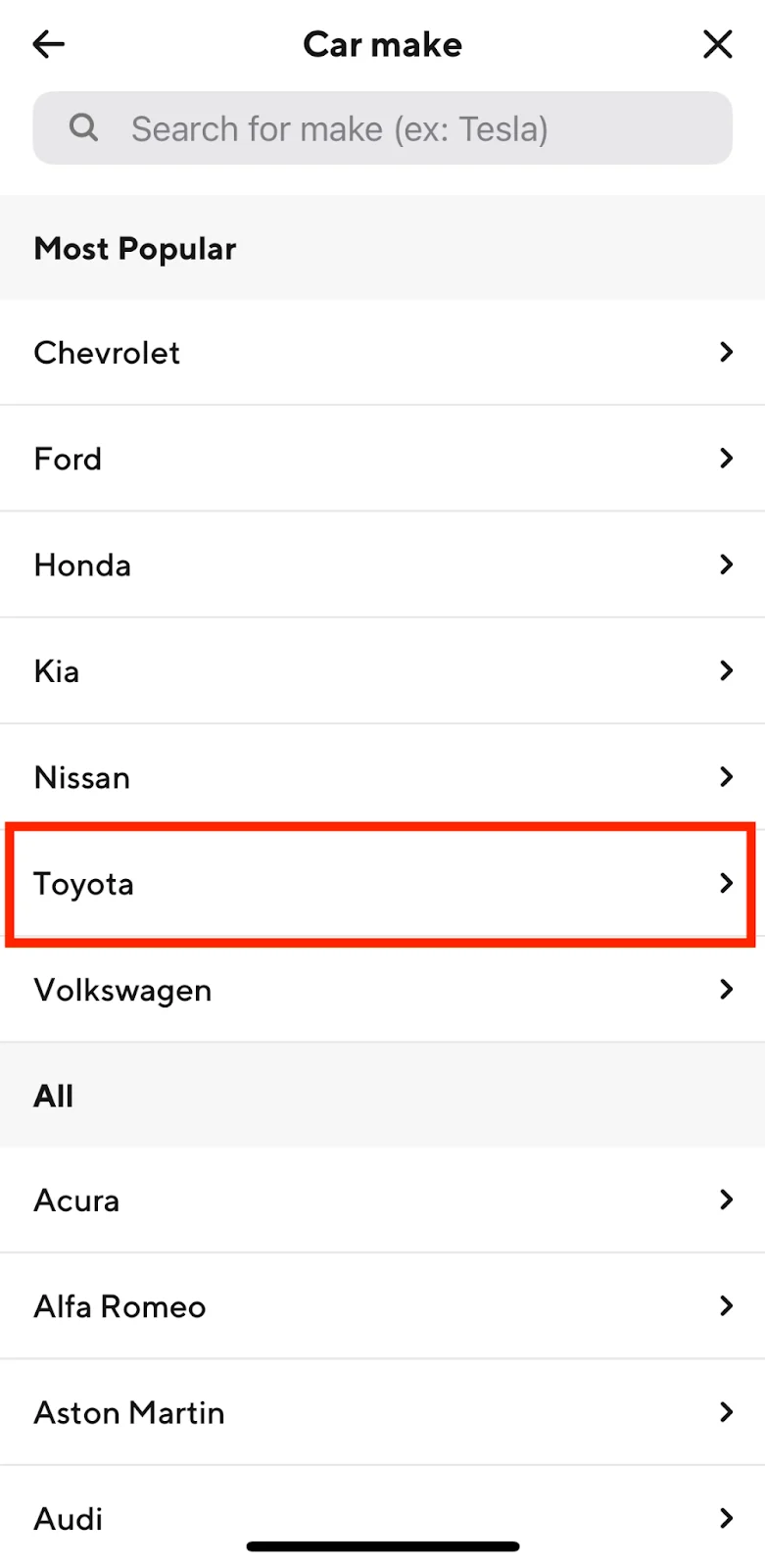
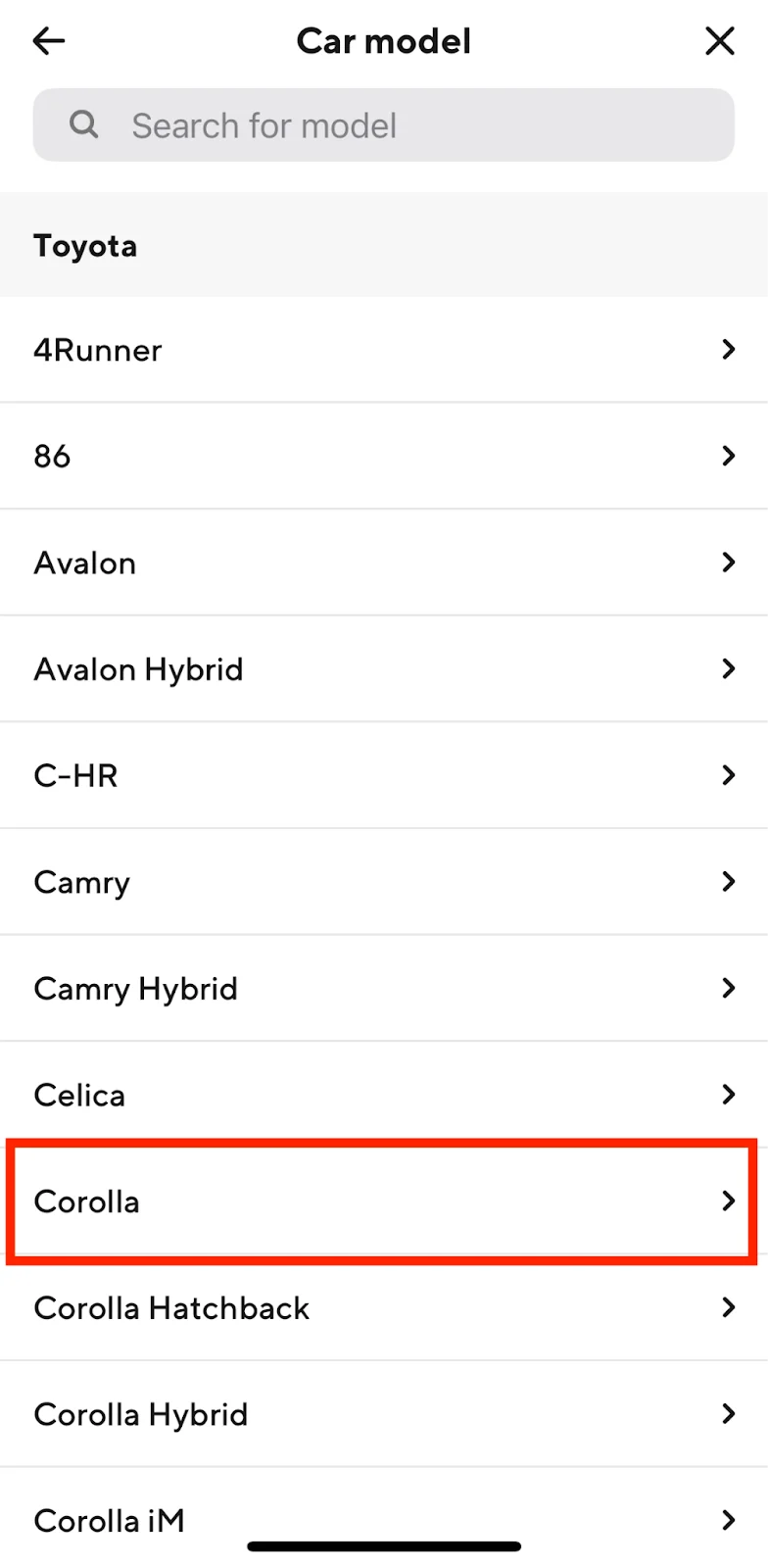
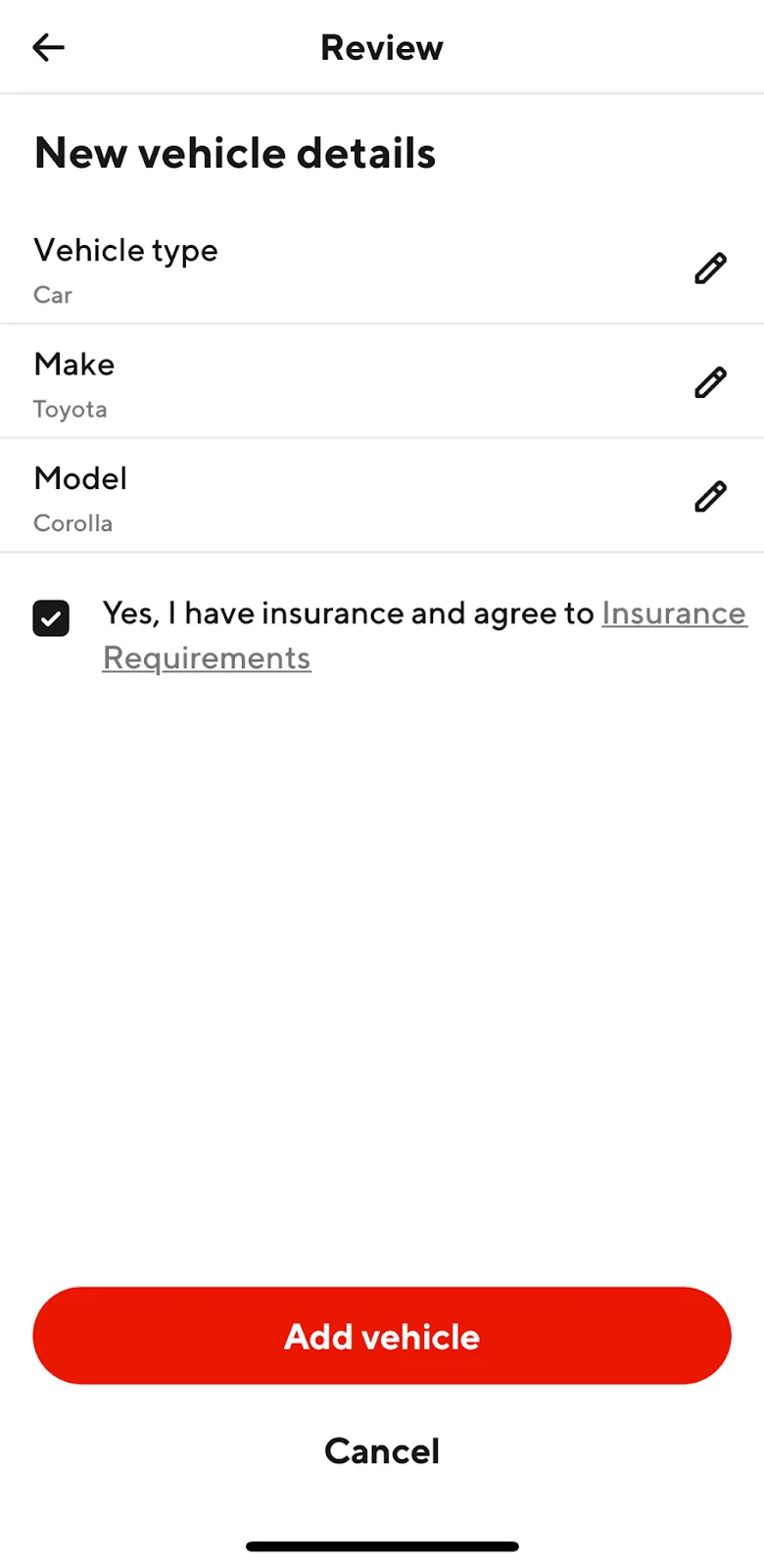
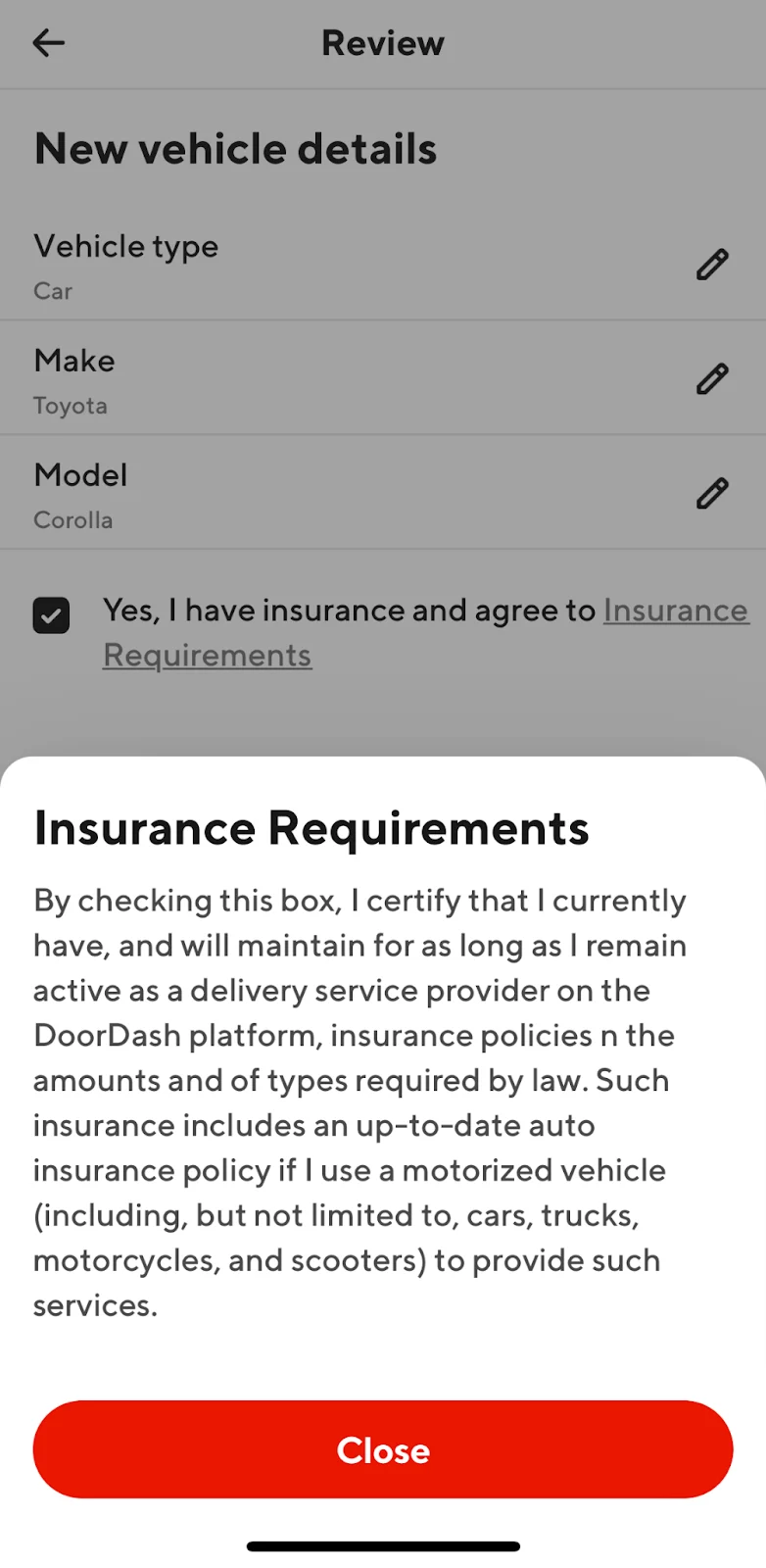
Android Version
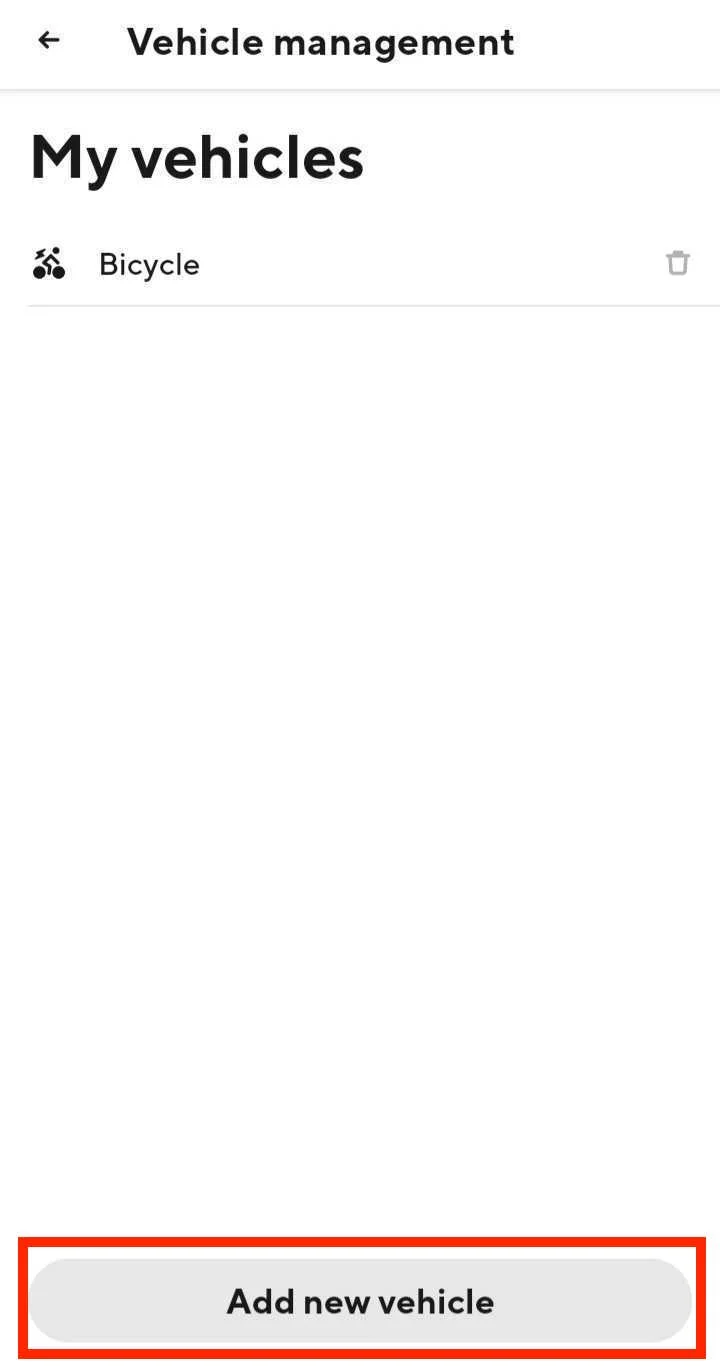
1. From the Vehicle Management section on your Dasher app, tap Add New Vehicle |
|
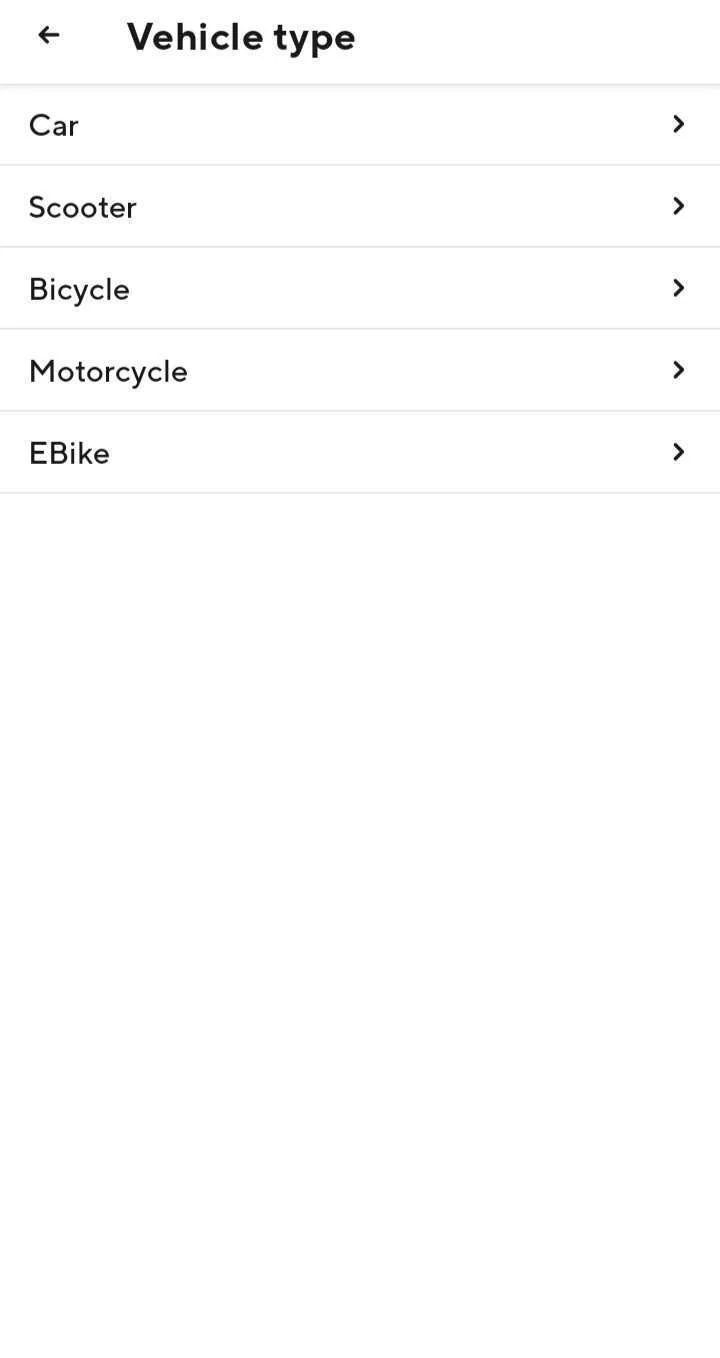
2. Select the vehicle type you would like to add to your account Please note dash types available to you are dependent on your market. |
|
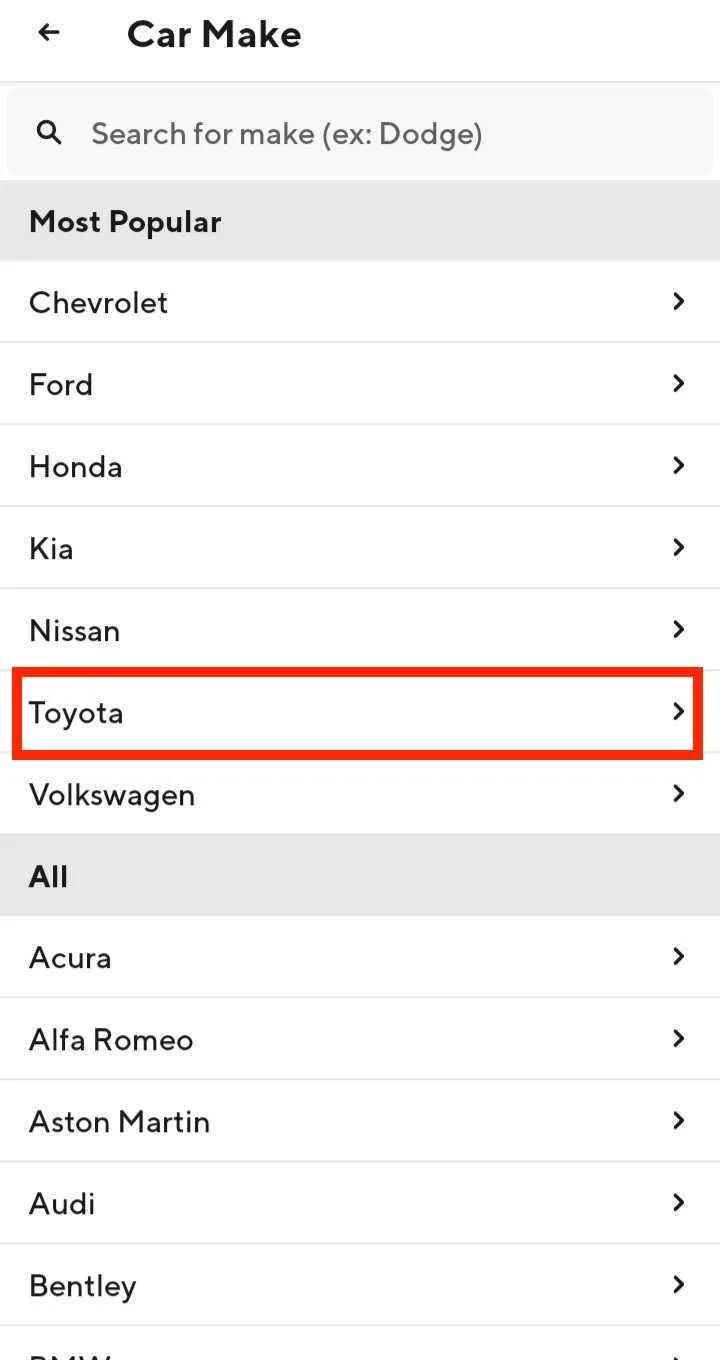
3. If you add a car to your account, you will be required to also add the Car Make and Car Model |
|
4. Review the new vehicle details and confirm that you have insurance and agree to the Insurance Requirements 5. Tap Add Vehicle |
|
6. Your new vehicle will appear under your My Vehicles section |
|
Q: How do I switch my Vehicle type
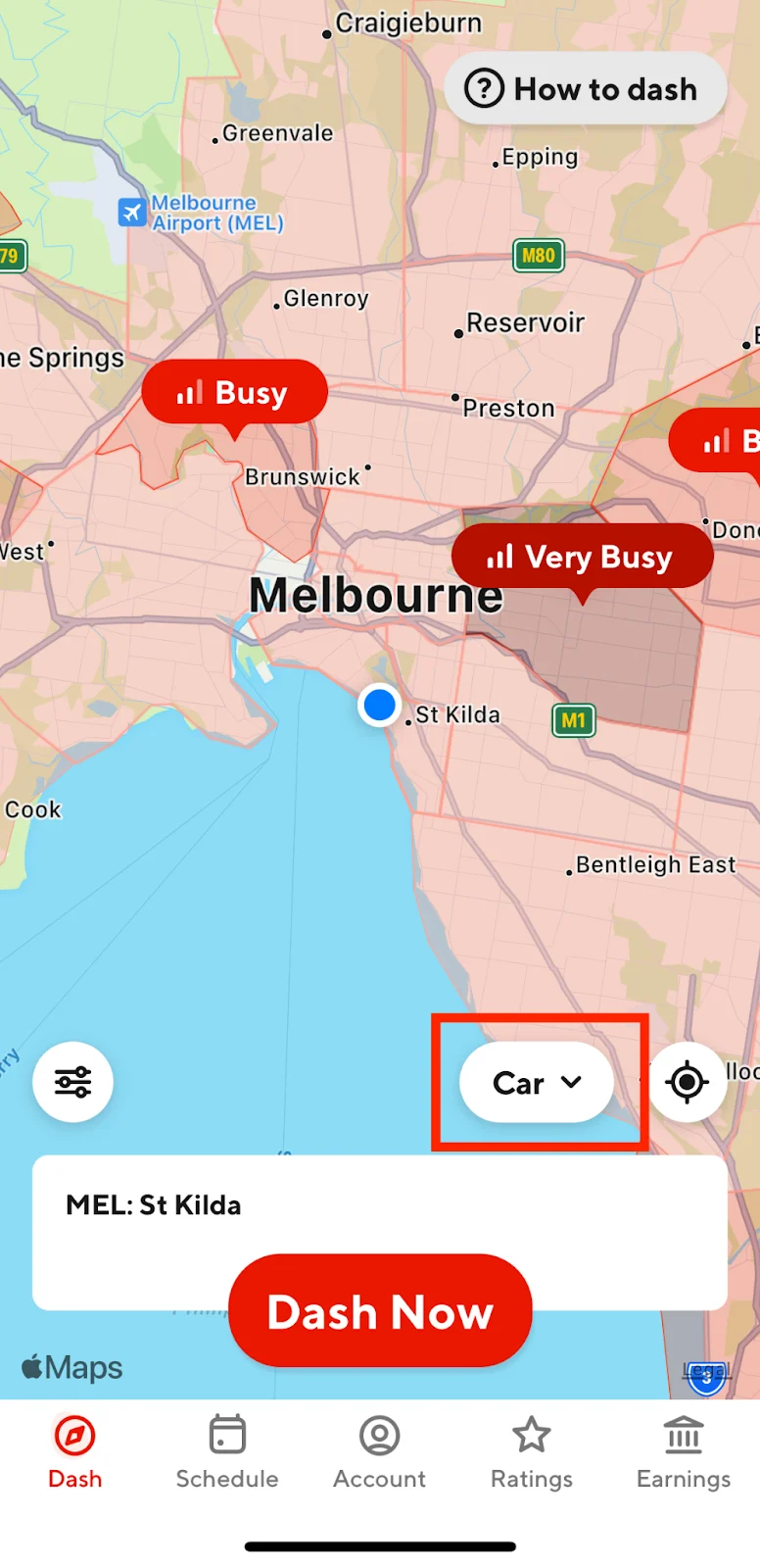
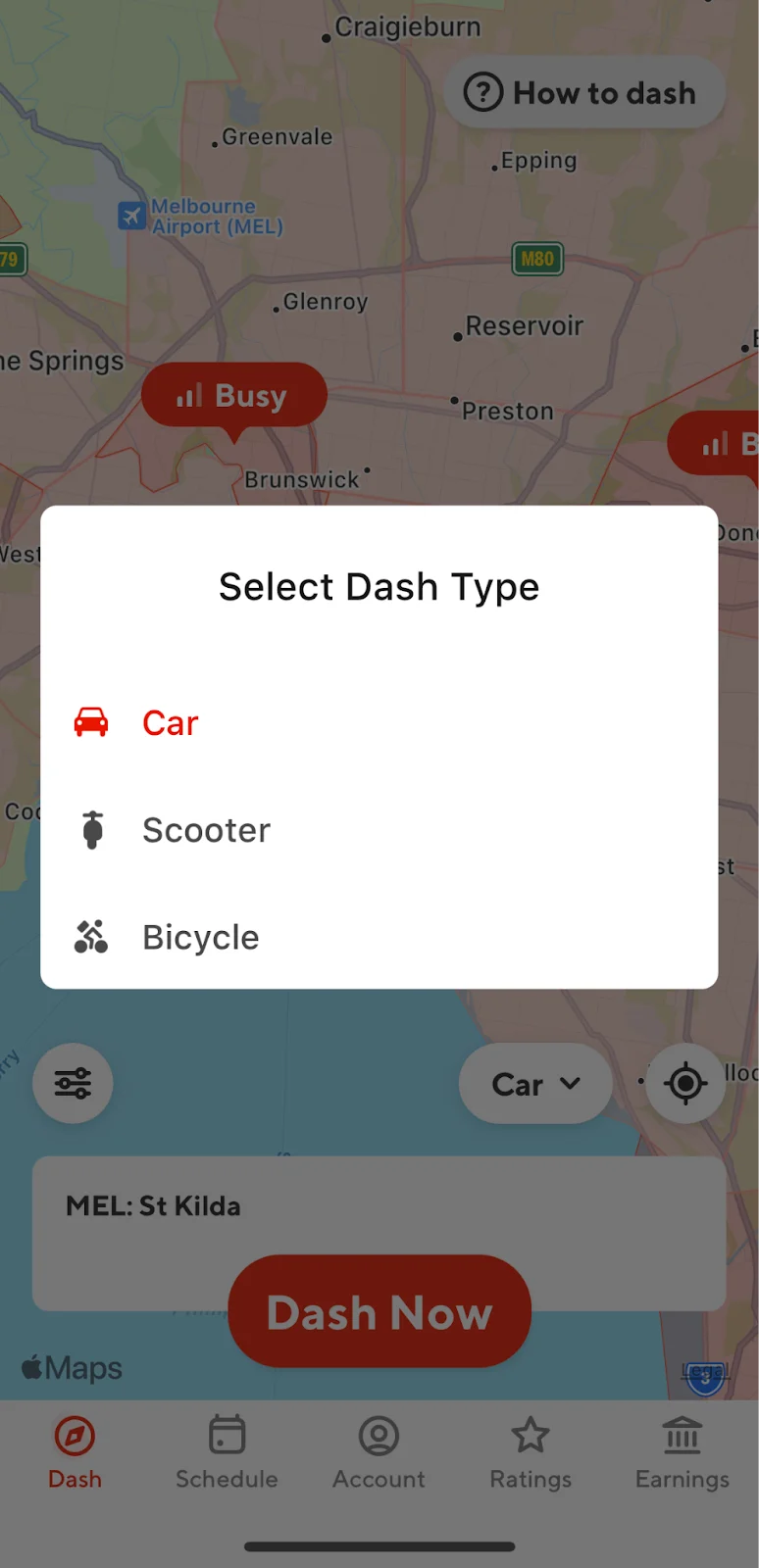
A: If you have multiple dash types already added to your account, you’ll be able to switch between the options before you "Schedule a Dash" or "Dash" button in your app all through the preference tab in your app. Here’s how it looks on both iOS and Android:
1. Tap on the Dash Icon on the bottom right-hand corner of the Dash Tab |
|
2. Select the Dash Type you wish to use |
|
Q: How do I delete a Vehicle type?
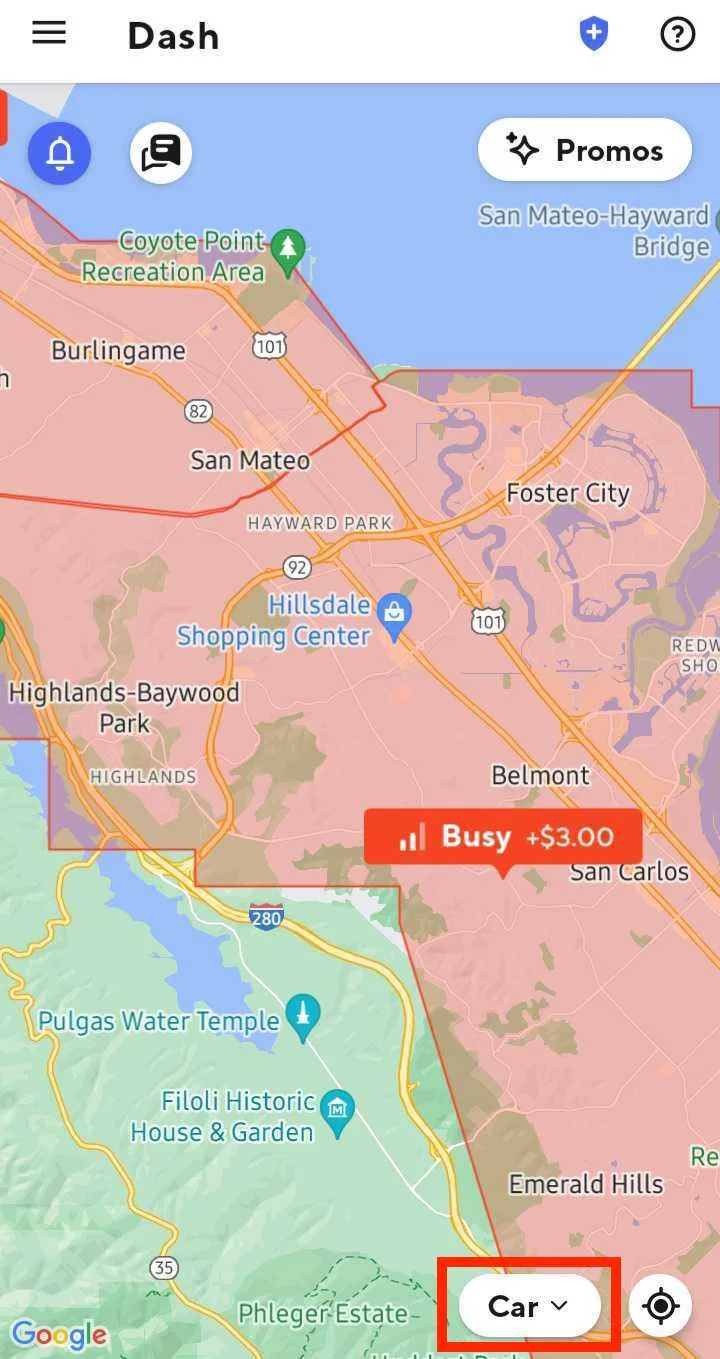
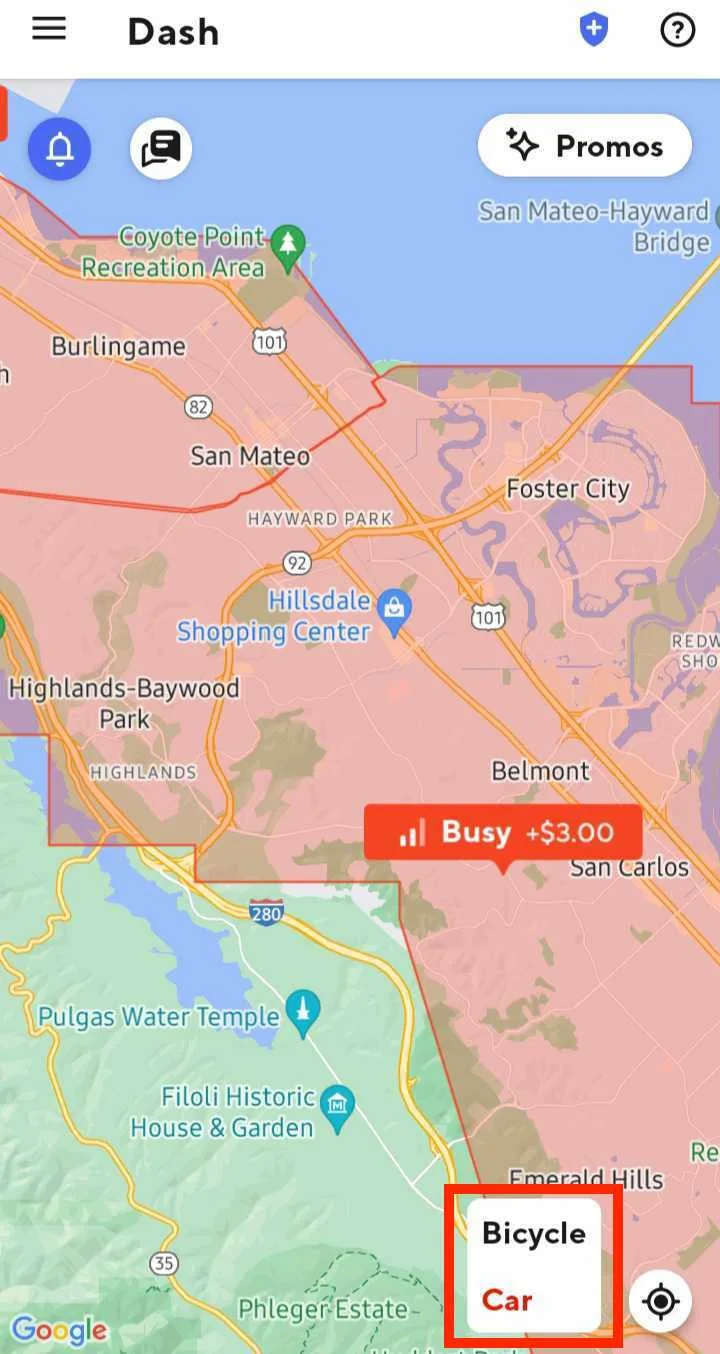
A: If you would like to remove a vehicle from your account, please follow the steps below to delete it. Here's how for both IOS and Android:
1. Tap on the vehicle dropdown Icon on the bottom right-hand corner of the Dash Tab |
|
2. Select the Dash Type you wish to use |
|
Q: How do I edit an existing Dash type on my account?
A: You cannot directly edit an existing vehicle on your account. If you need to update the details:
First, delete the incorrect vehicle
Add the new vehicle details
1. From the Vehicle Management section on your Dasher app, select the Bin icon next to the vehicle you want to delete |
|
2. Confirm that you want to Delete vehicle |
|
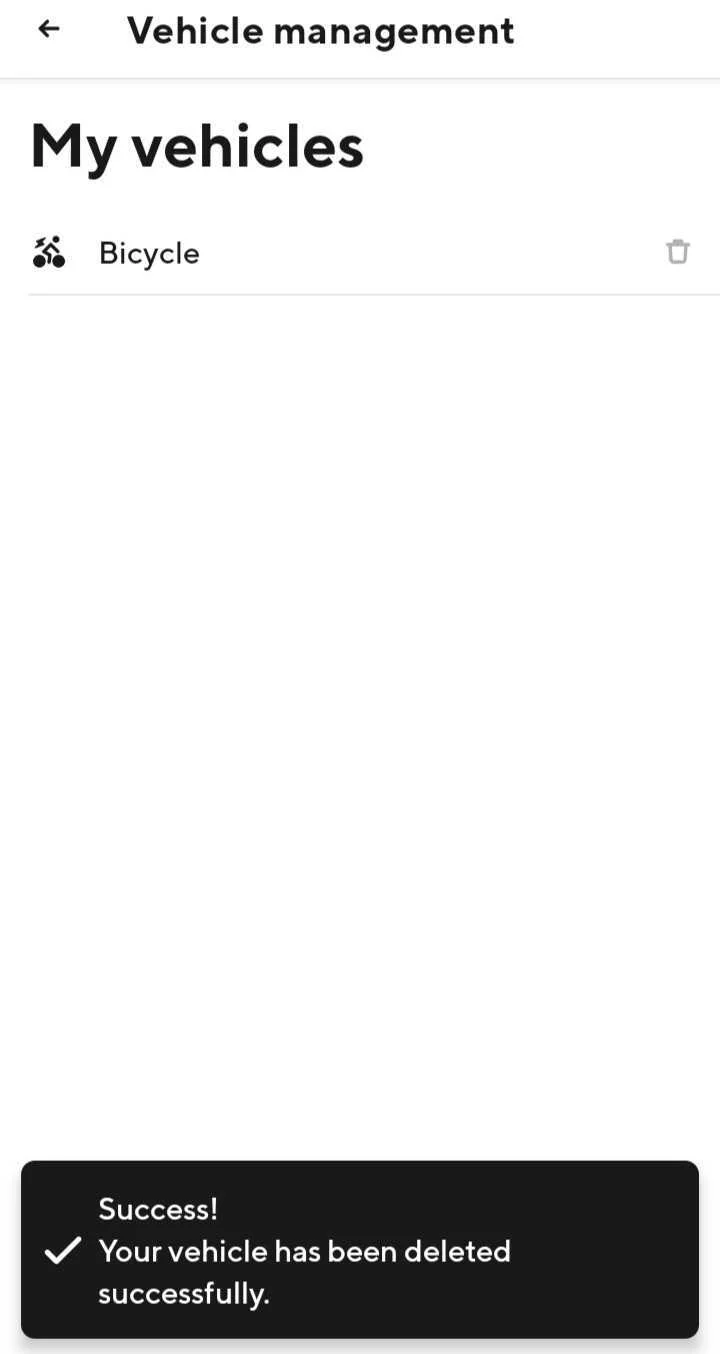
3. You will see a message confirming that You have successfully deleted your vehicle and it will no longer appear under My vehicles |
|
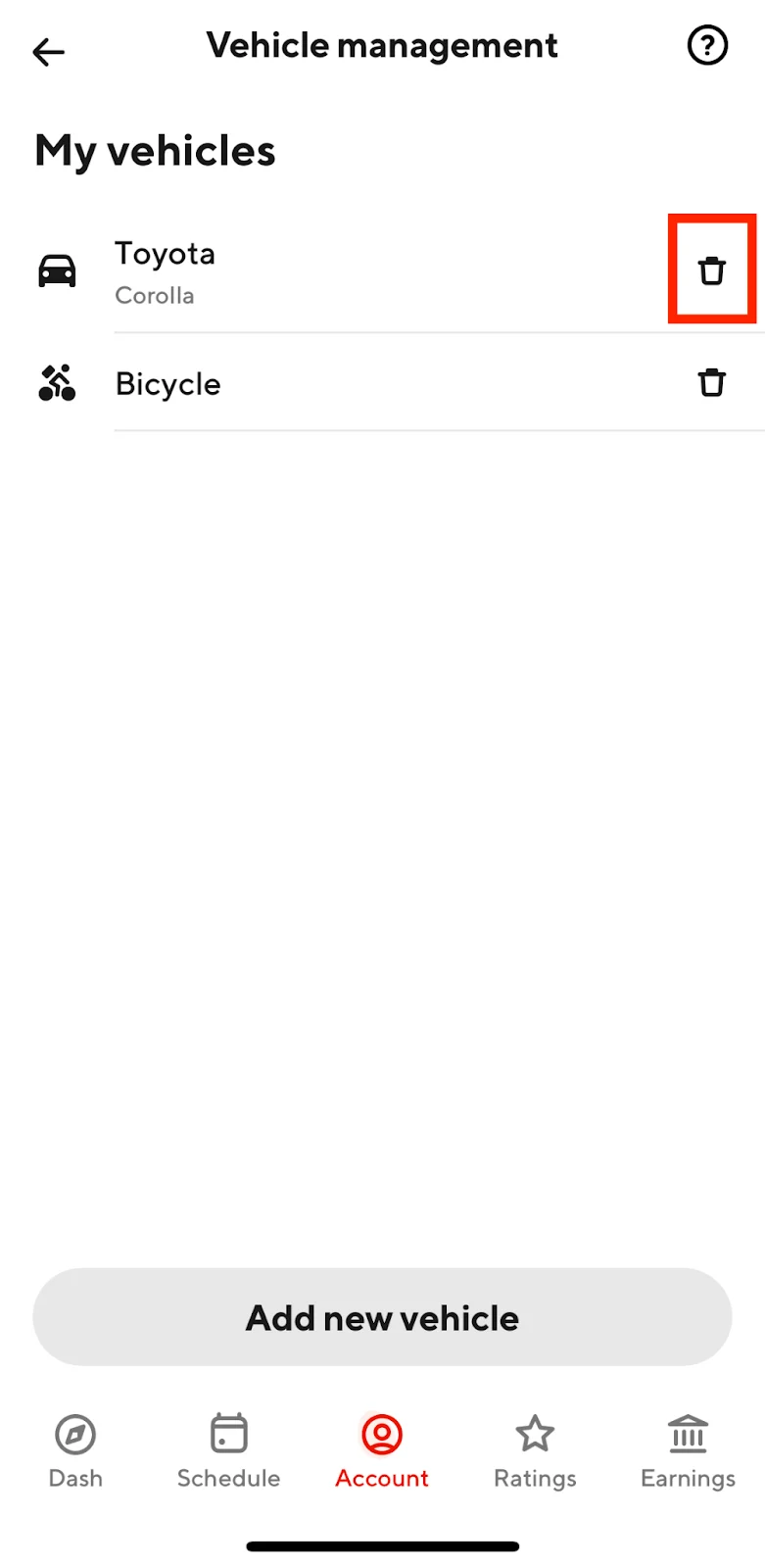
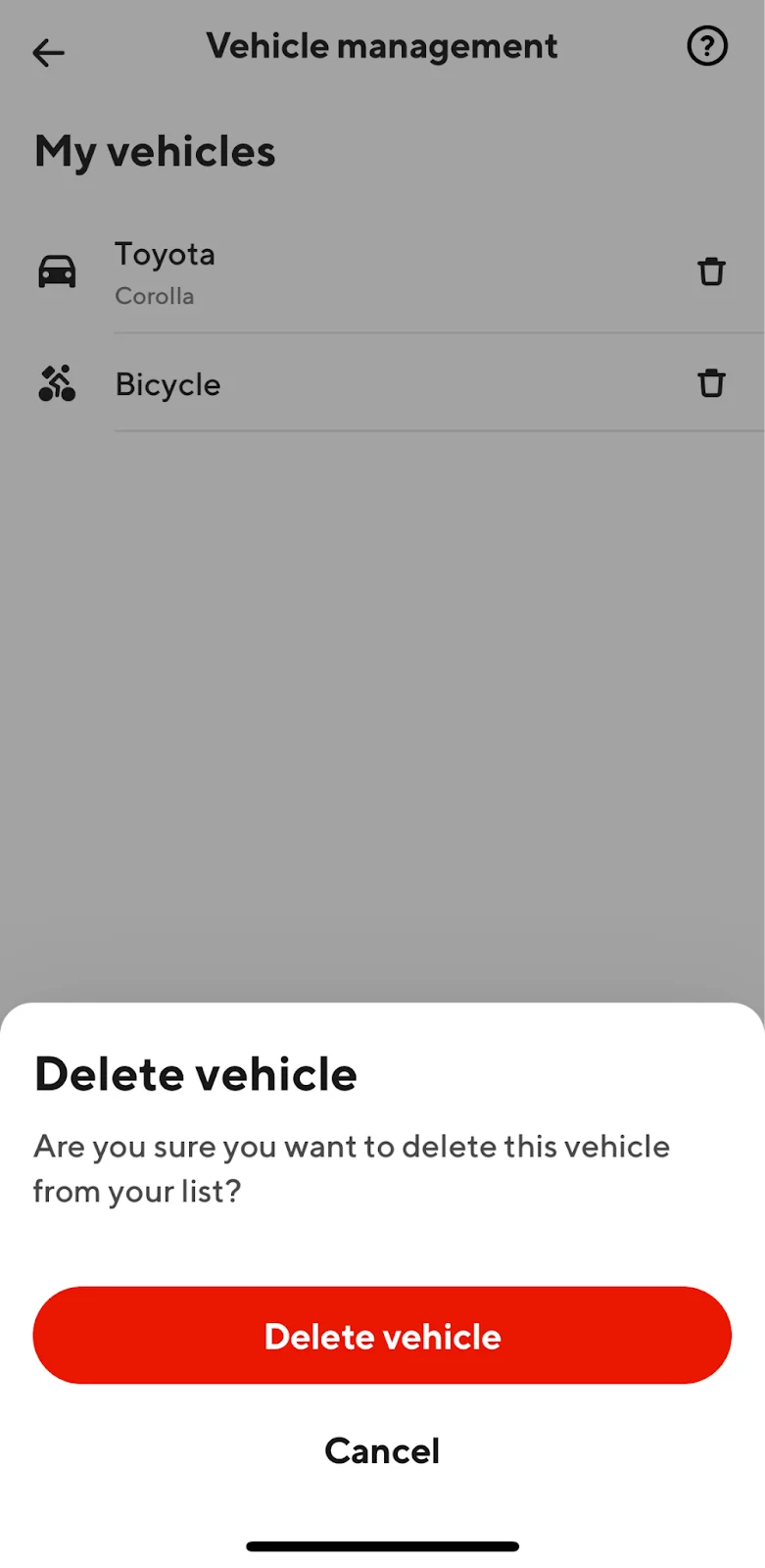
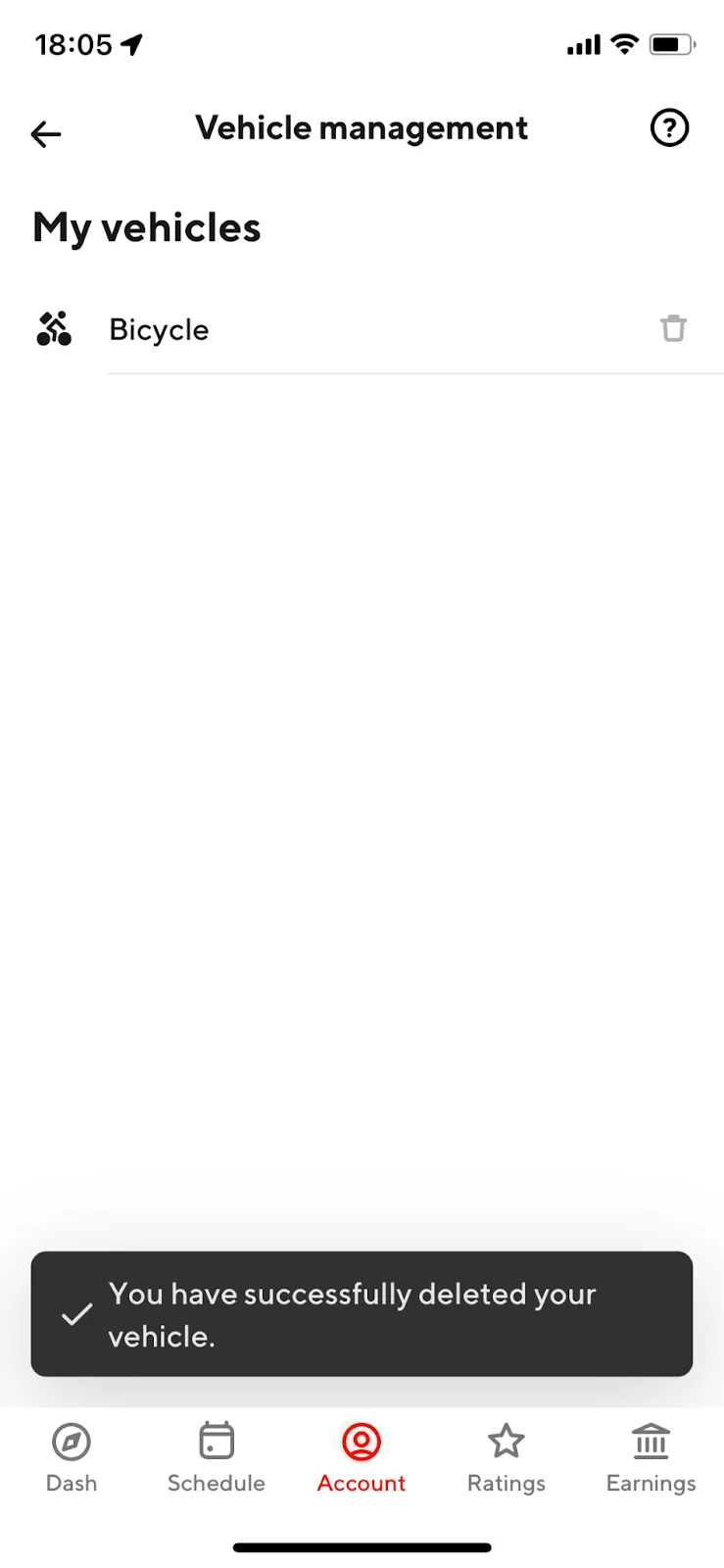
1. From the Vehicle Management section on your Dasher app, select the Bin icon next to the vehicle you want to delete |
|
2. Confirm that you want to Delete Vehicle |
|
3. You will see a message confirming that You have successfully deleted your vehicle and it will no longer appear under the My Vehicles section |
|
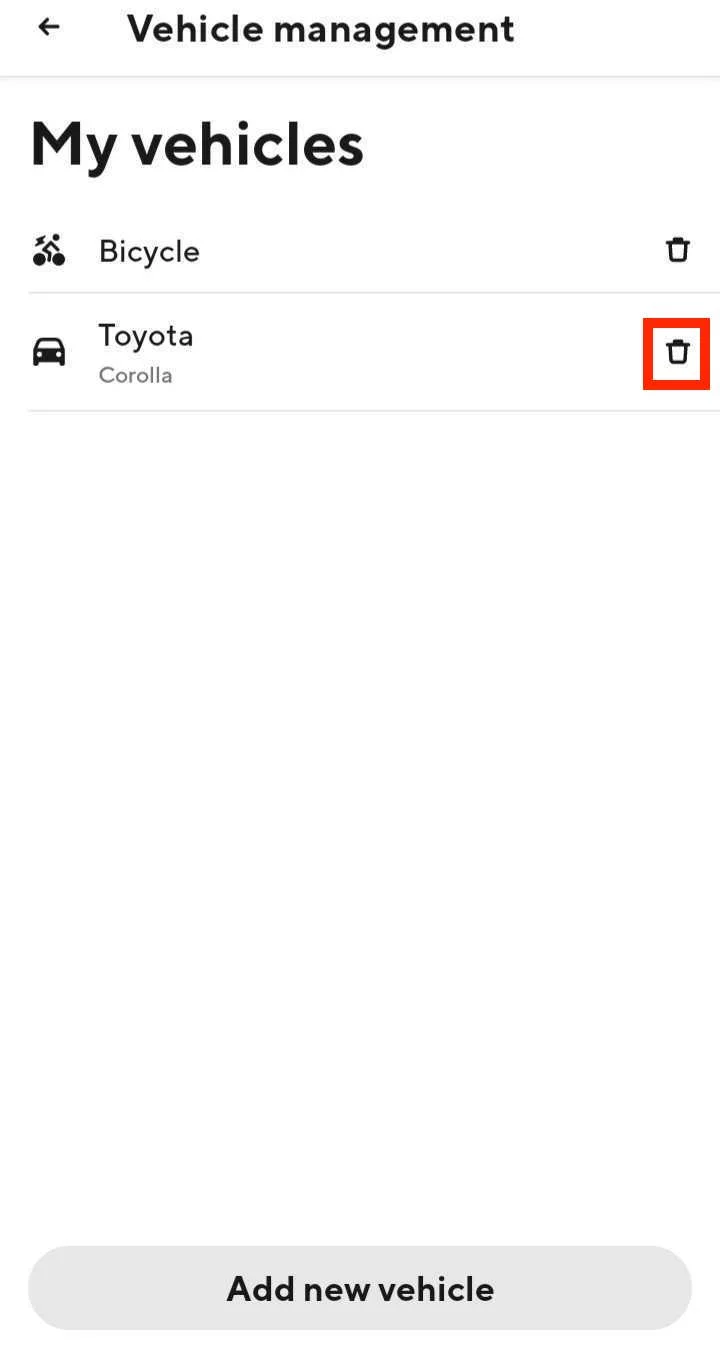
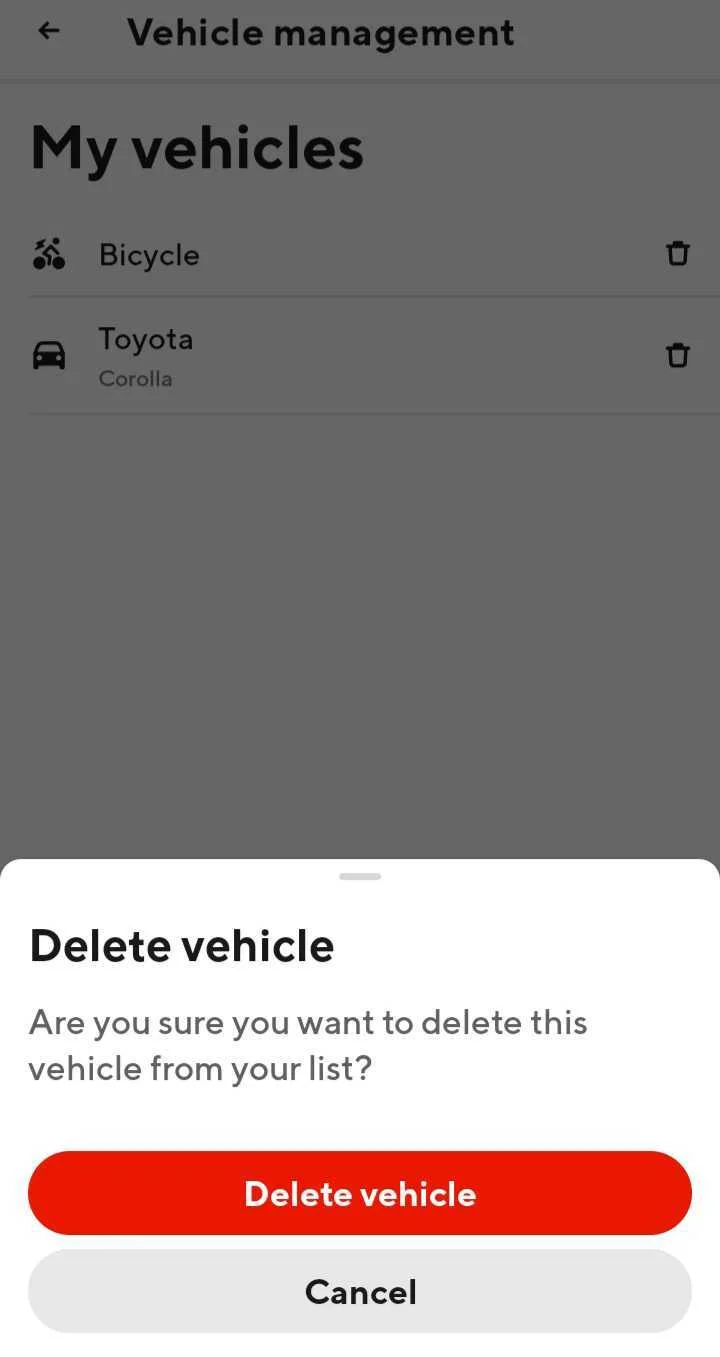
Vehicles DoorDash Explicitly Allows on the Platform | Vehicles DoorDash Explicitly Allows on the Platform | Vehicles DoorDash Explicitly Allows on the Platform | Vehicles DoorDash Explicitly Allows on the Platform |
Vehicle Type | Description | Photo | MVR Required |
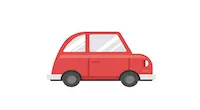
Car | Four-wheeled motor vehicles (can include car, truck, van, SUV, etc) |
| Yes |
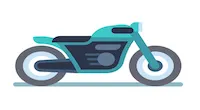
Motorcycle | Two wheel step OVER vehicle that goes faster than 25 mph at top speed |
| Yes |
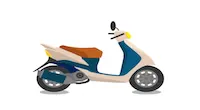
Scooter | Two wheel step THROUGH vehicle that goes faster than 25 mph at top speed (sometimes referred to as Moped) |
| Yes |
Ebike | Two wheel pedal bicycle with an electric motor |
| No |
Bicycle | Two wheel pedal bicycle with no motor |
| No |
Vehicles DoorDash Does NOT Explicitly Allows on the Platform | Vehicles DoorDash Does NOT Explicitly Allows on the Platform | Vehicles DoorDash Does NOT Explicitly Allows on the Platform | Vehicles DoorDash Does NOT Explicitly Allows on the Platform | Vehicles DoorDash Does NOT Explicitly Allows on the Platform |
Vehicle Type | Description | Photo | MVR Required | Closest Vehicle Type |
E-scooter | Two wheel stand up electric scooter |
| No | Bicycle |
Walking | Individual who does not use a vehicle |
| No | None, we have deprecated the walking vehicle type and DO NOT want Dx without any vehicle fulfilling deliveries |