How do I troubleshoot the DoorDash App?
How do I troubleshoot the DoorDash App?
For iOS users, go here for troubleshooting steps.
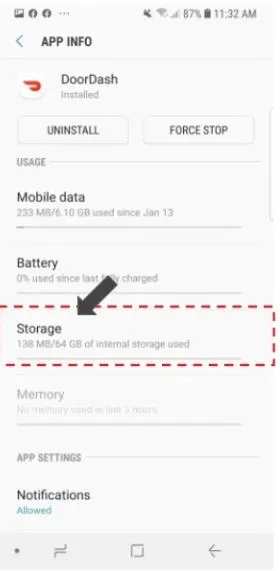
Your Android DoorDash app may be experiencing issues due to a glitch from a third-party vendor (i.e., app crashes when on a map page). We are working on a fix to resolve this, but in the meantime to correct the issue immediately, please follow the steps below. Please note that you will be logged out and will need to log back in with your DoorDash username and password:
Launch Settings
Go to Apps
Tap DoorDash
Tap Storage
Tap CLEAR DATA, and then DELETE
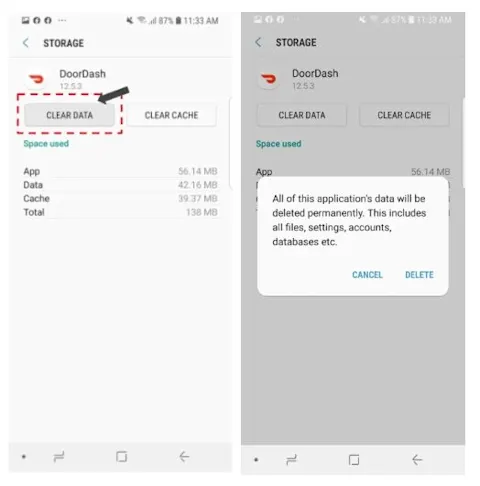
You will be asked to re-login to your DoorDash app
If you are still experiencing issues, try the steps listed below.
Troubleshooting for iOS and additional troubleshooting for Android:
Check your internet connection.
Turn your phone's wifi off and back on again.
Make sure you’re not in airplane mode.
Temporarily turn off your device’s WiFi and use cellular data instead. Having a strong phone signal without wifi improves the app’s connectivity.
Restart your phone
Uninstall and Reinstall your DoorDash app.
Uninstall the DoorDash app, turn off your phone for 3-5 seconds, and then reinstall the app. If you are not connected to wifi, installing the app will use data and affect your data usage.
This will ensure the bug fixes our tech team implements to the app will update to your installed version of the app.



